
Welcome to Paythepoolman Help Page articles!
We're very sorry to see you go! However, before you do go, we strongly recommend that you export your data from your company’s settings page in PaythePoolman. This will generate an Excel Worksheet with customer information, invoice and payments information, as well as expenses information for you to take with you. If this is not completed before canceling you will no longer be able to access this information.
Additionally, it is recommended that you disconnect your Stripe account from Paythepoolman BEFORE you proceed with the account cancellation. Finally, if you use our Payroll service, be sure to cancel that service through Everee BEFORE you cancel your Paythepoolman account.
TO EXPORT YOUR DATA:
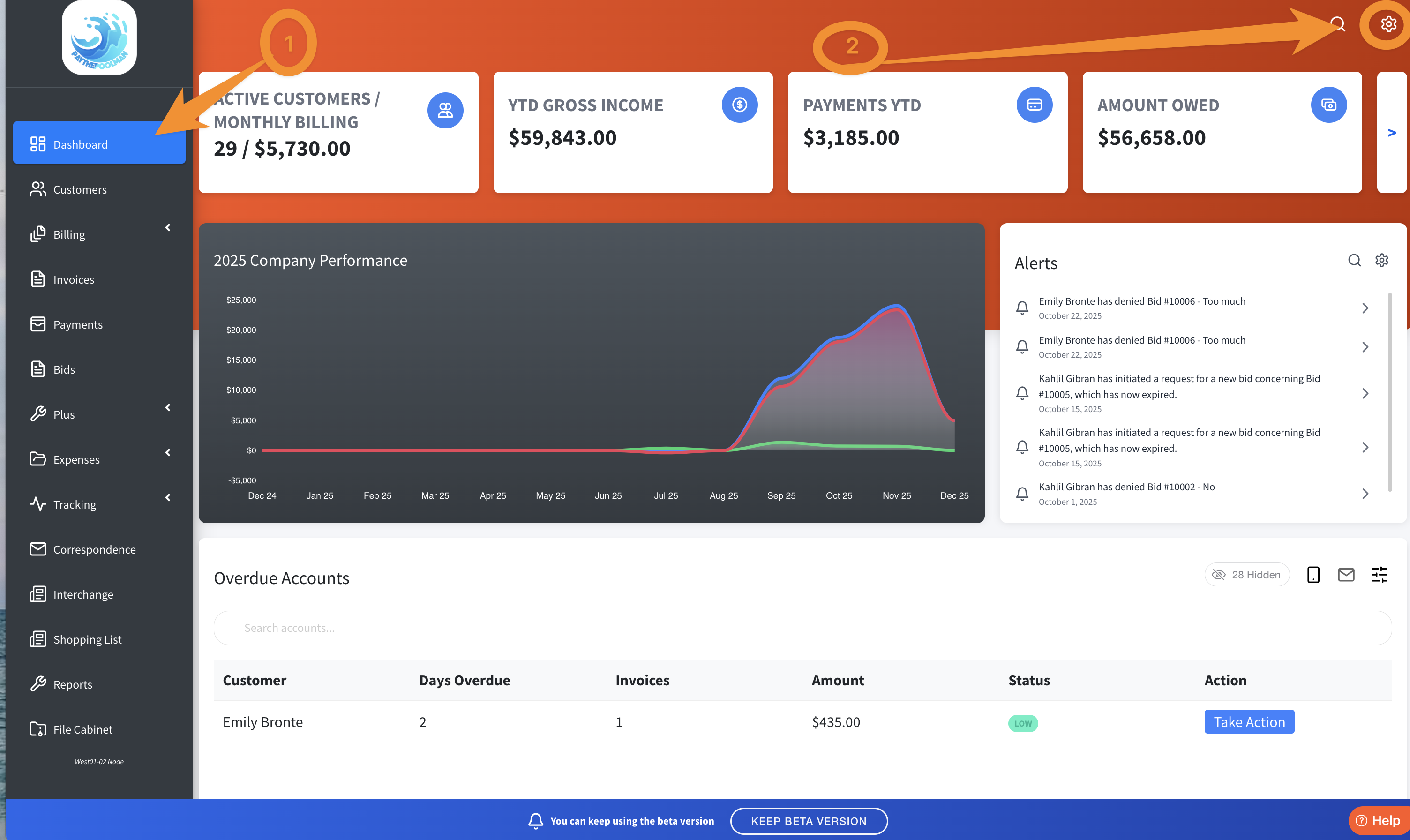
1. Go to your Company Settings by clicking on the GEAR icon in the upper right corner of your screen:
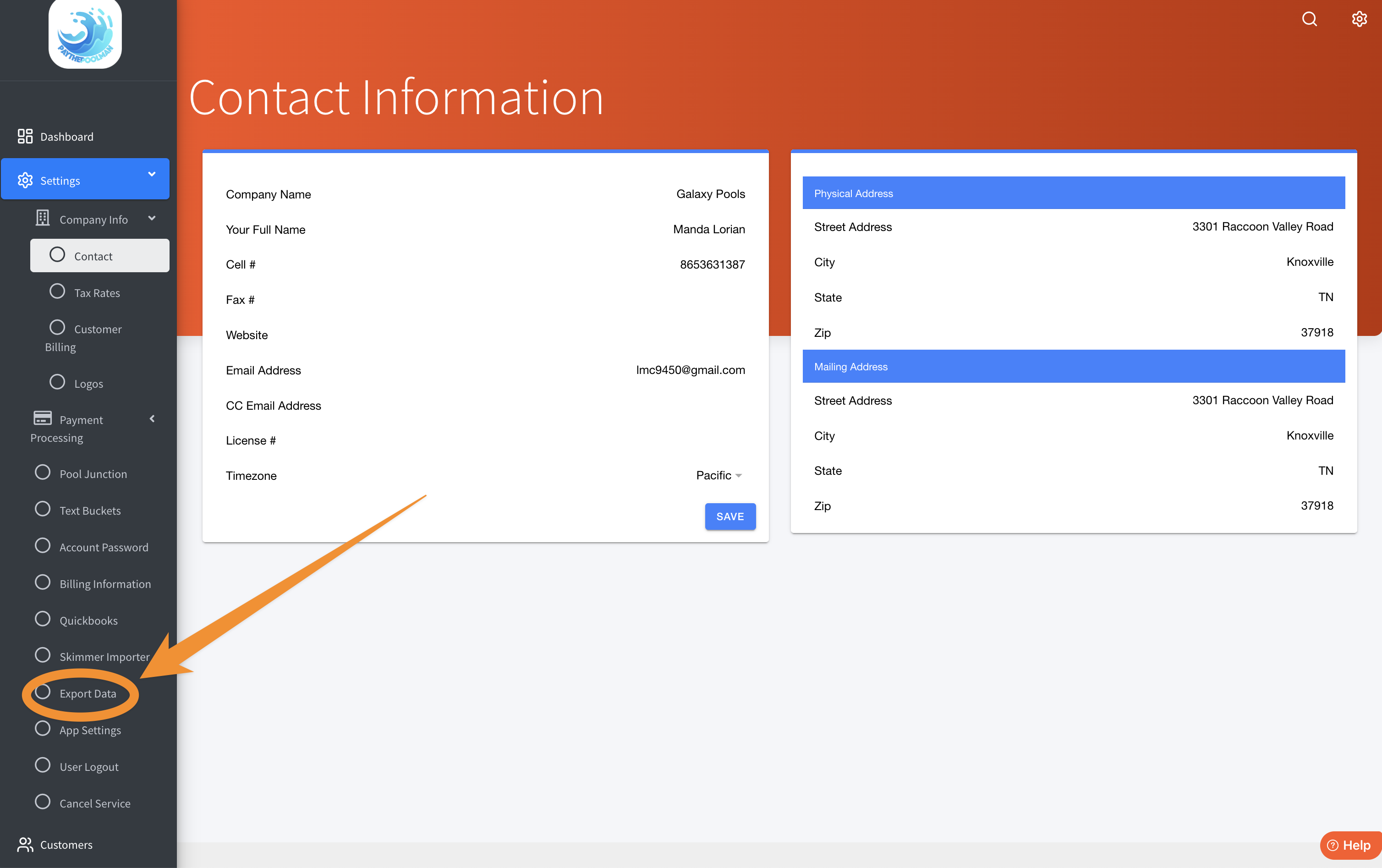
2. From here, select EXPORT DATA from the black sidebar on the left of your screen.
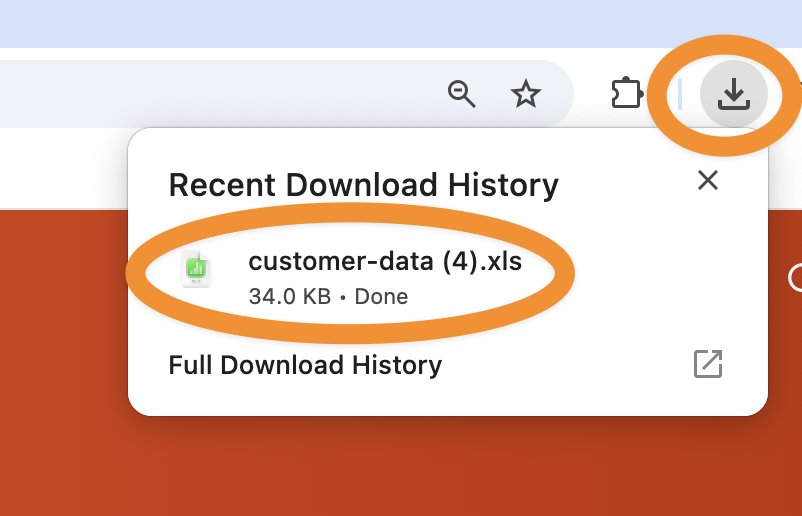
3. The Customer-Data xls has now been downloaded to your device's default Download location:
Canceling Service
Now that you have successfully exported your data, you can follow these steps to cancel your service.
1. Navigate to your Company Settings Page (see number one above), then scroll all the way down to the bottom of the black sidebar on the left of your screen:
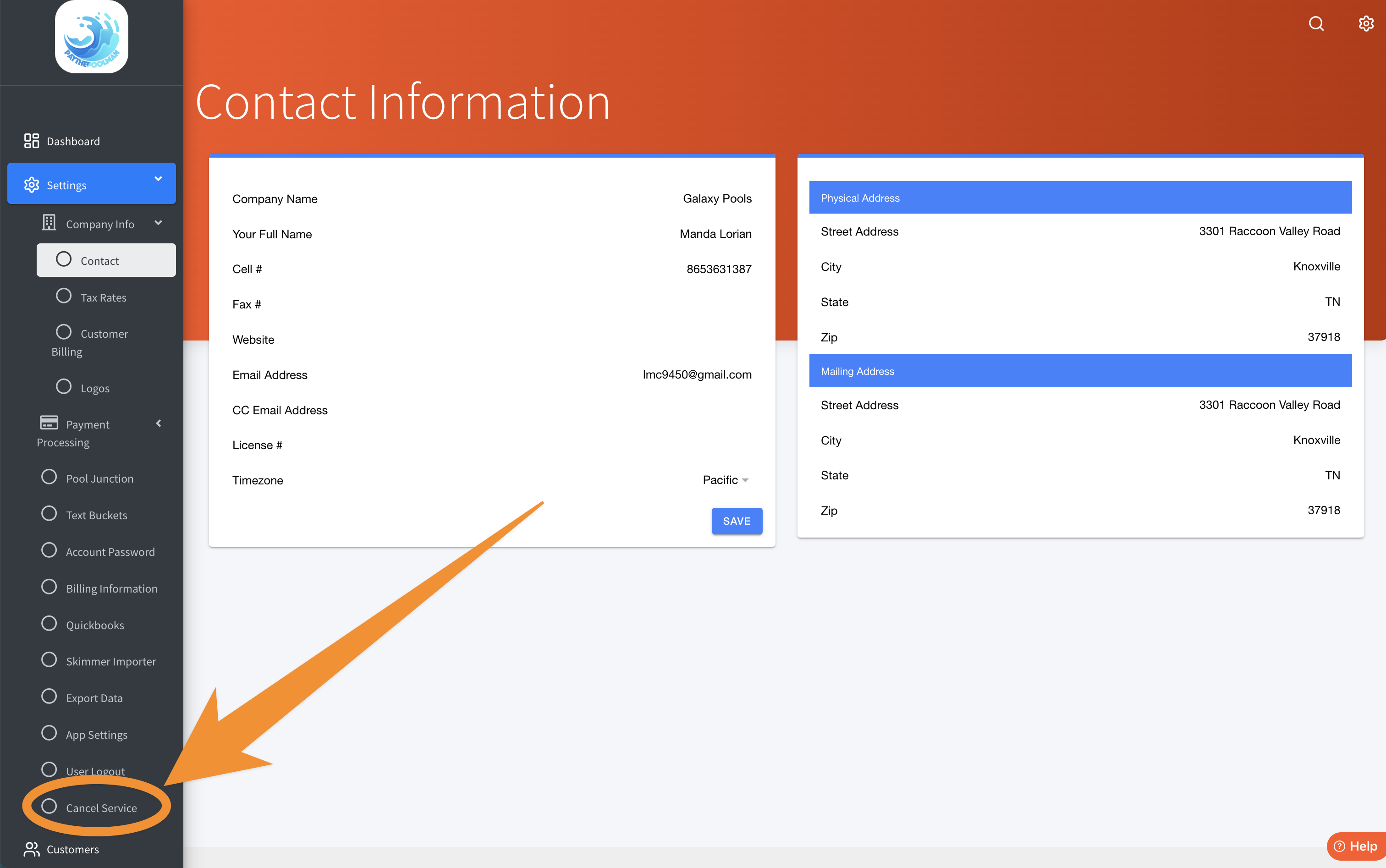
3. Click on CANCEL SERVICE and follow all the prompts. Hit the RED action button that will appear.
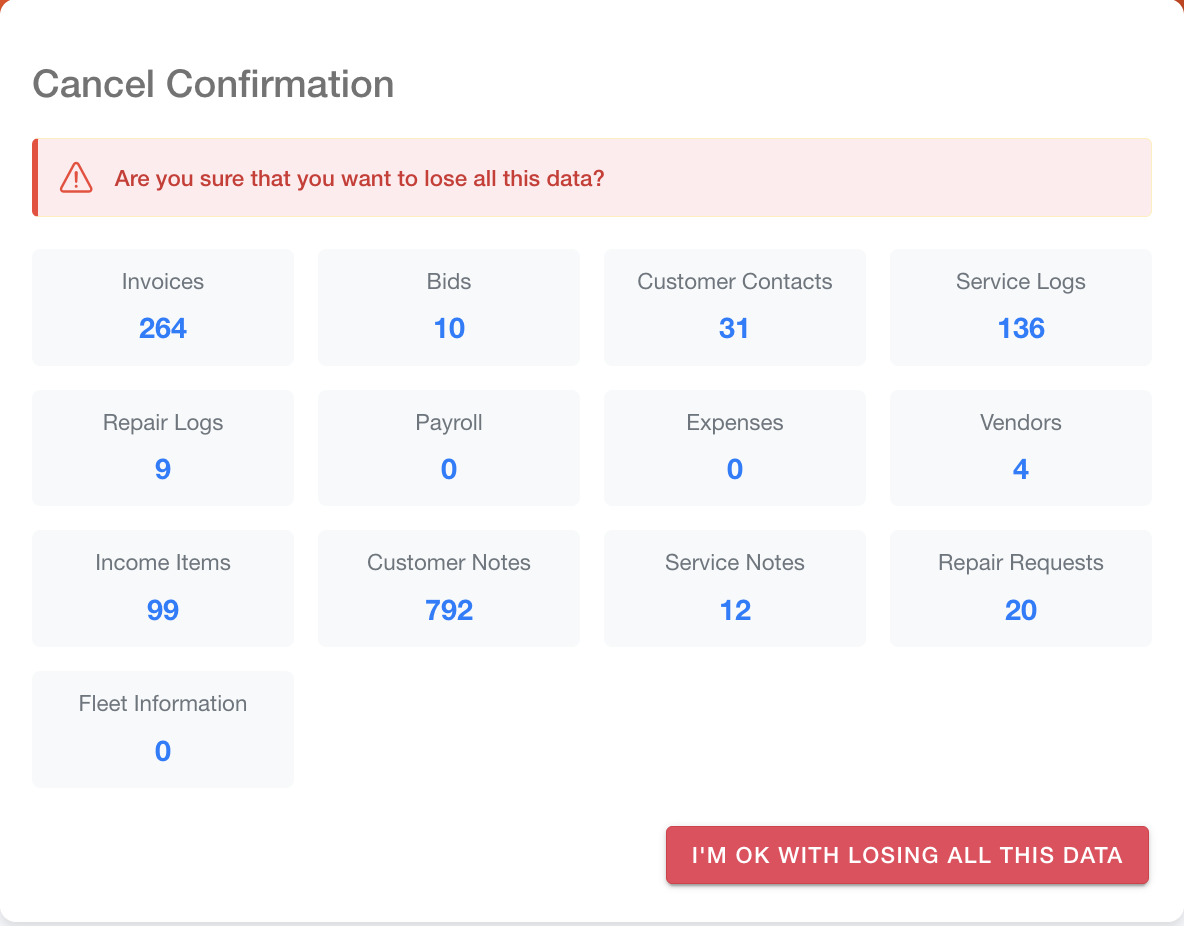
Once you have selected the cancel service button you MUST complete the survey to finish the cancellation process. If you do not complete the survey your account will not be canceled!
If the steps outlined in this guide did not work for you to export data and cancel service, please call or text to 951-234-5166 or email us at support@paythepoolman.com.
Hopefully, you come back and check out what's new from time to time. We always release amazing tools to help run your business smoothly. Thank you and have a great day :)