
Welcome to Paythepooman Help Pages!
In this article, we'll look at the steps for adding a vehicle to the Fleet Manager in your Plus account!
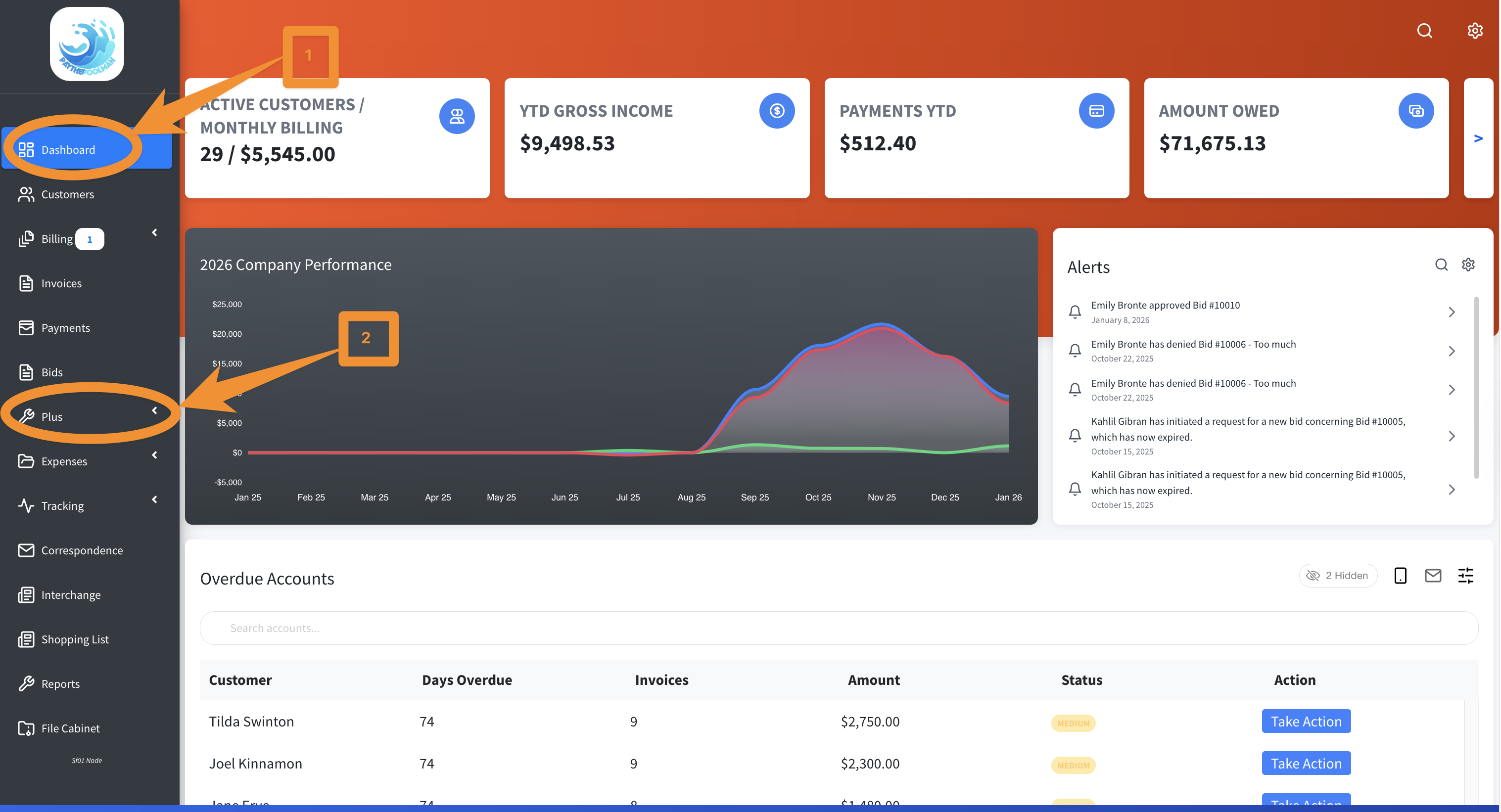
1. From the Company Dashboard, just scroll down and click on the PLUS with the wrench icon:
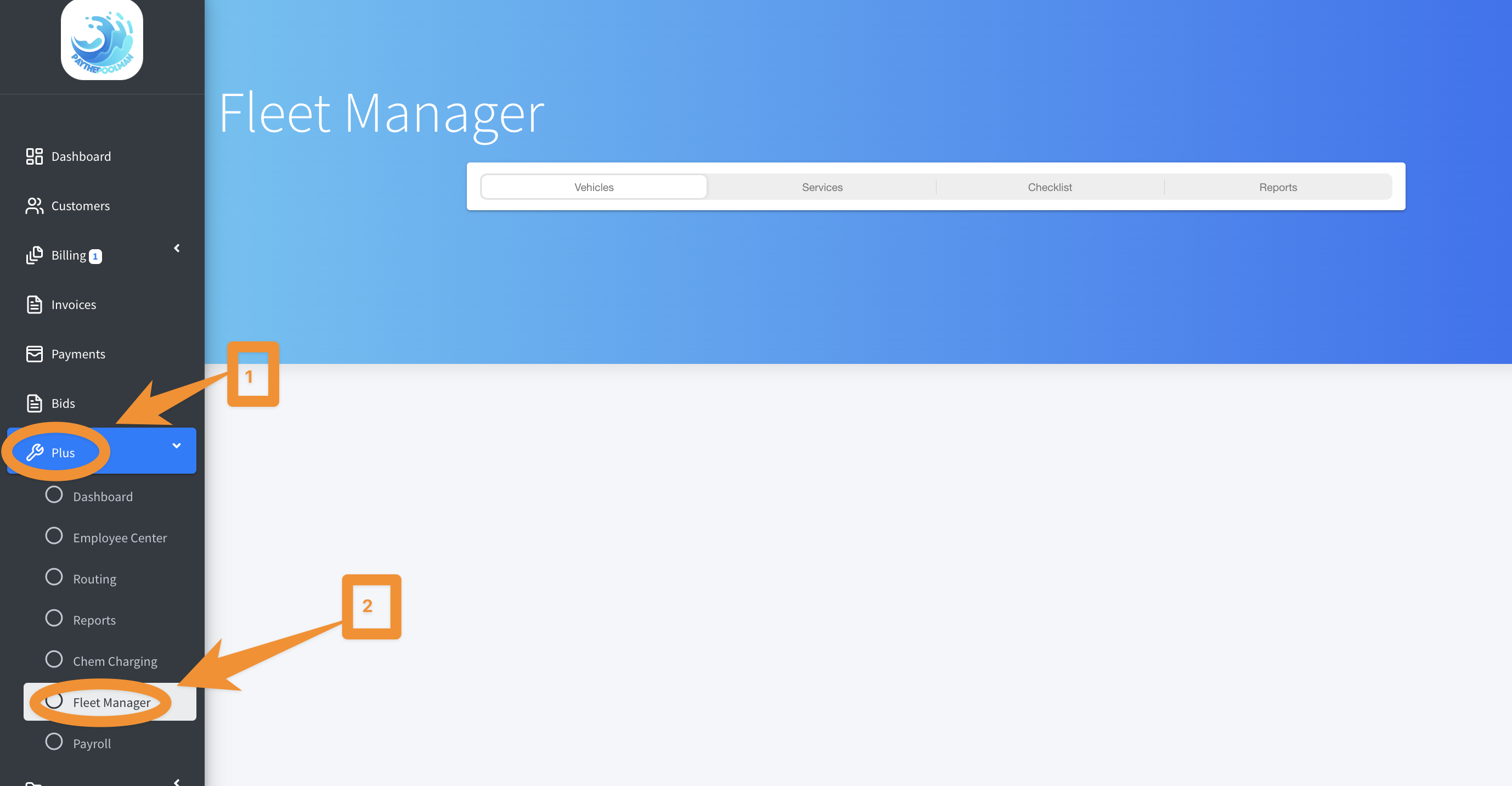
2. From the drop down menu, select FLEET MANAGER
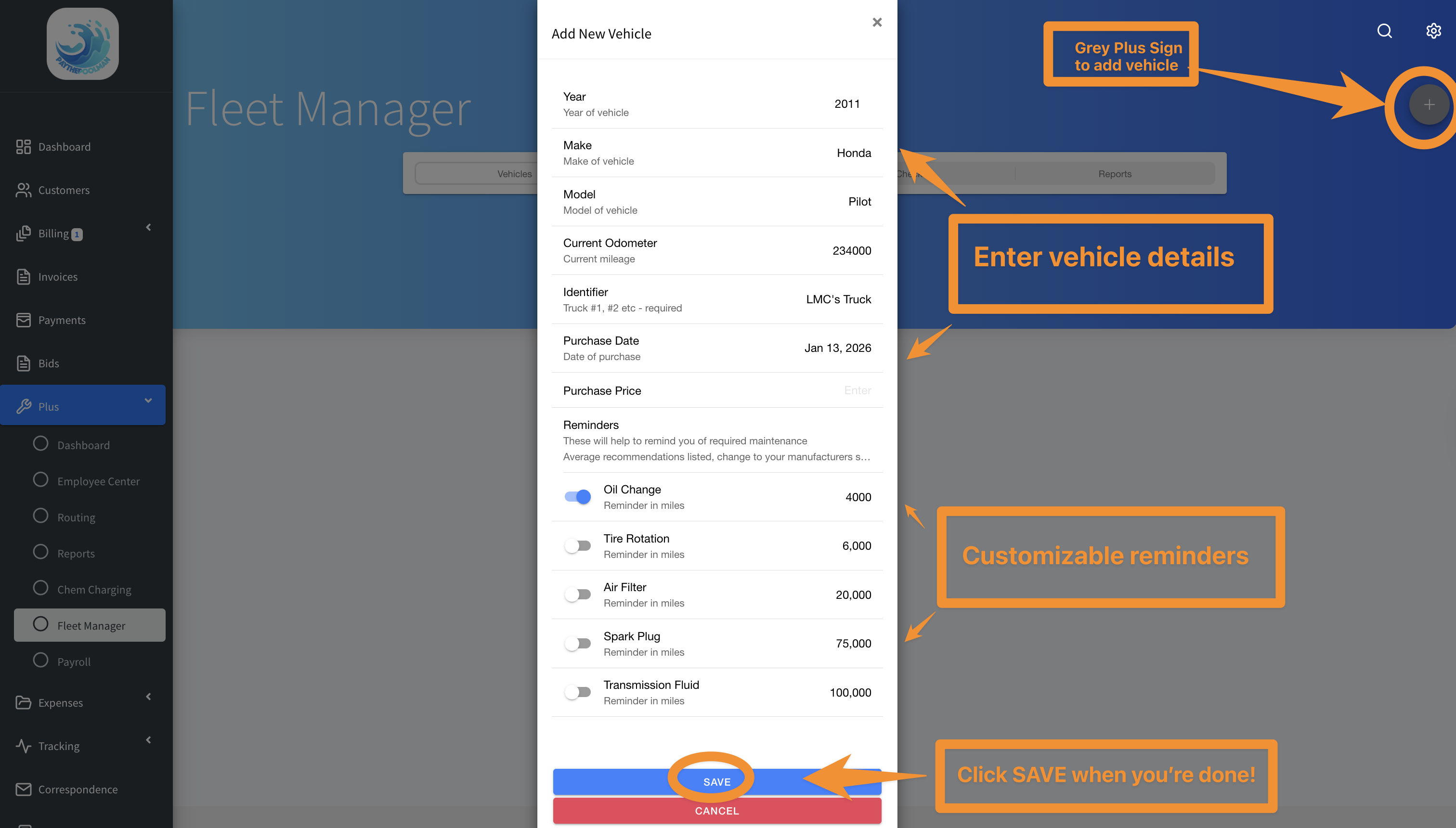
3. Here, click on the GREY PLUS SIGN to the right of the screen to add a vehicle, then enter the details and even customize reminders for Oil Changes, etc! When you're done, just click SAVE.
4. Once you've added the vehicle to the system, your tech's can now complete the vehicle checklist's in the Plus app. Here is a help page on how that works - Plus App Vehicle Checklist
And that's it! Be sure to check out our other Help Pages and our YouTube Channel with over 100 videos and tutorials!
Here's the link: https://www.youtube.com/@Paythepoolman
If you have any other questions or need further assistance, you can reach out to our Support Team at
support@paythepoolman.com or (951) 234 5166.
Office hours: Mon-Fri 8AM to 4PM EST| 5AM to 1PM PST
Have a nice day!