
Hello and Welcome to Paythepoolman's Help Pages!
This page will provide a general overview of the Plus Dashboard. There are lots of features here so let's dive in!
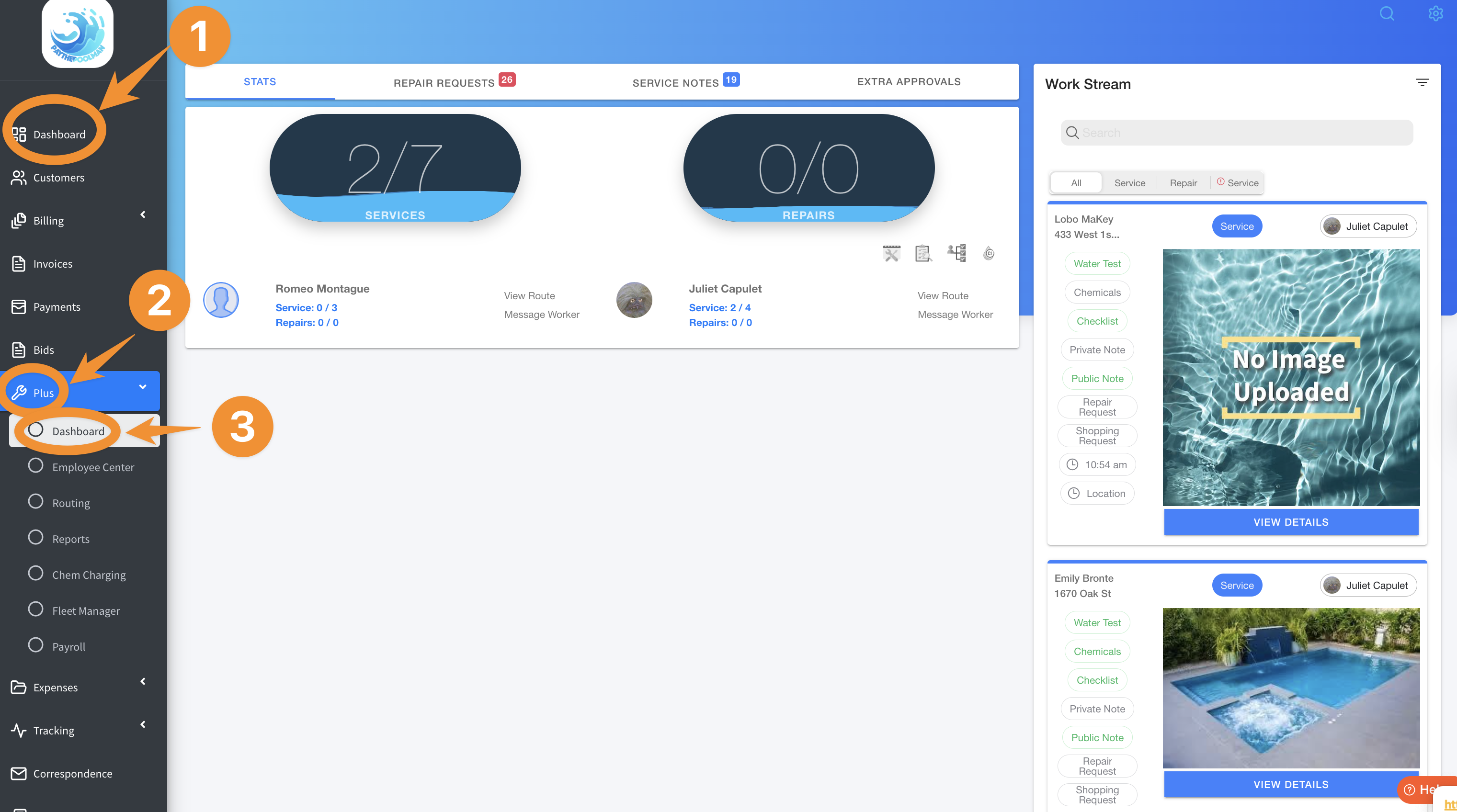
1. From your Company Dashboard, Click on PLUS, then DASHBOARD:
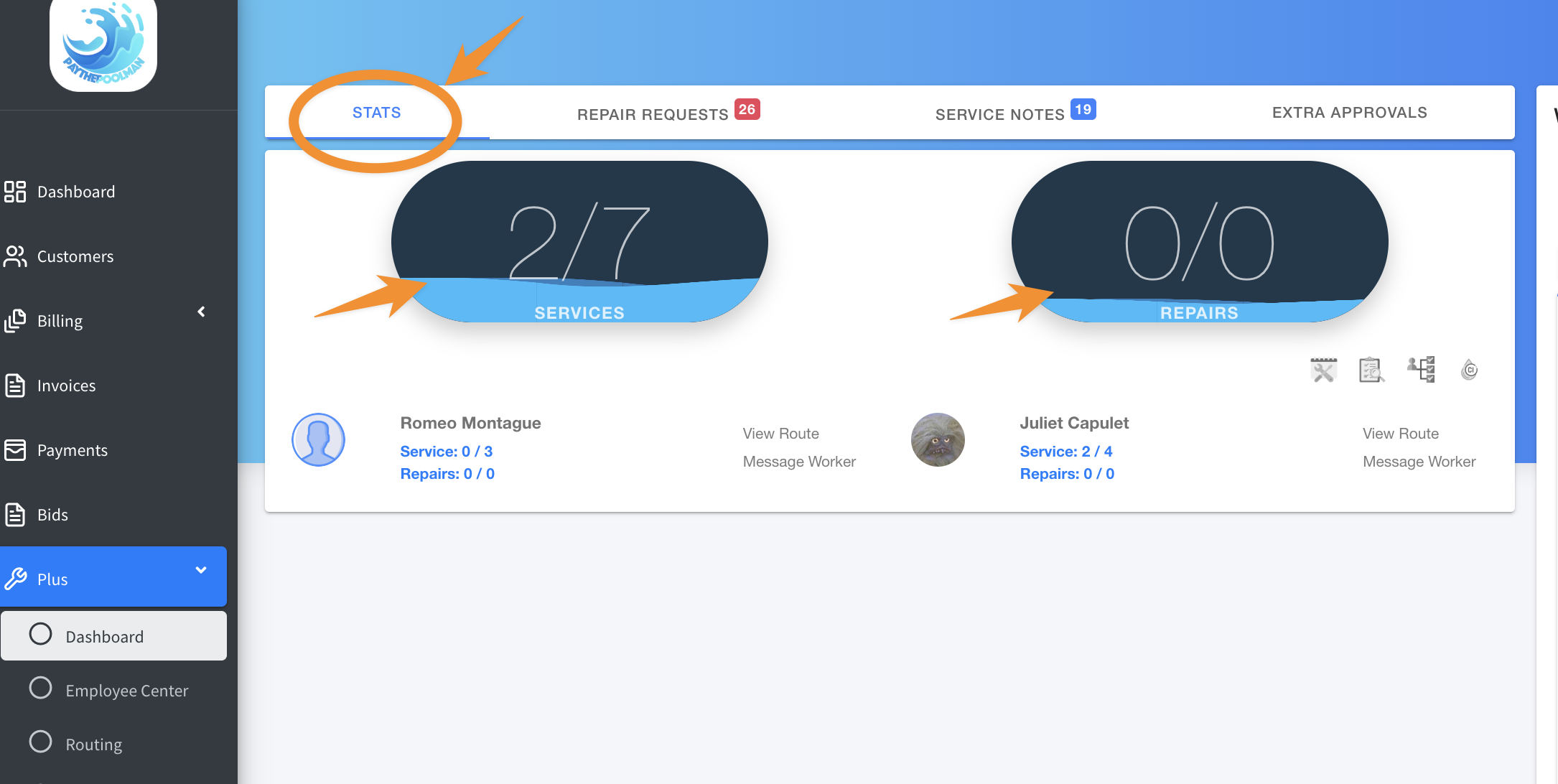
2. From here, the Dashboard defaults to current STATS, which is underlined with the blue bar.
3. Click on SERVICES to see the current day's routes per tech: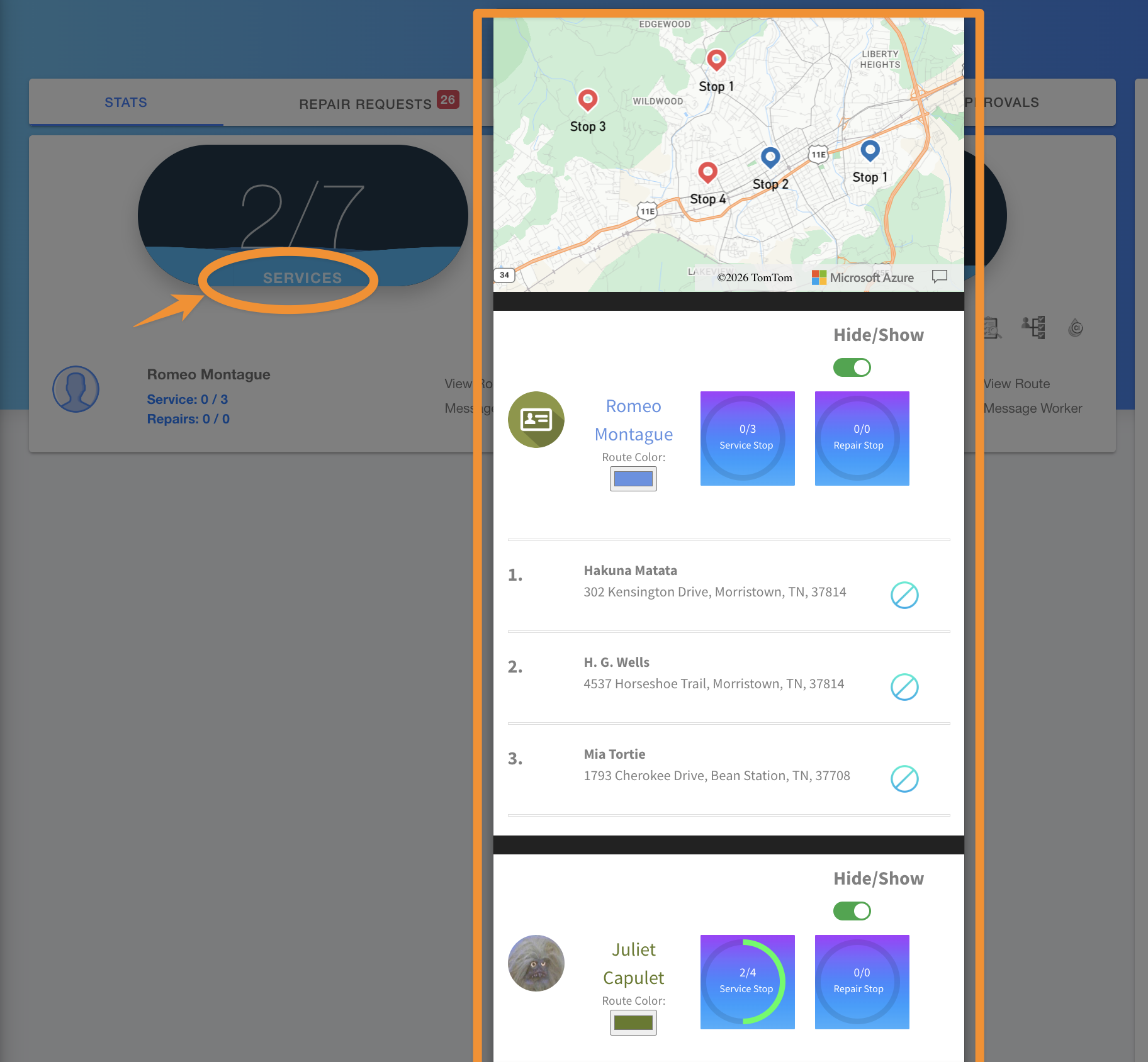
4. A circle with a line through it indicates that the service has not been completed. The circle with the checkmark indicates that a service HAS been completed: 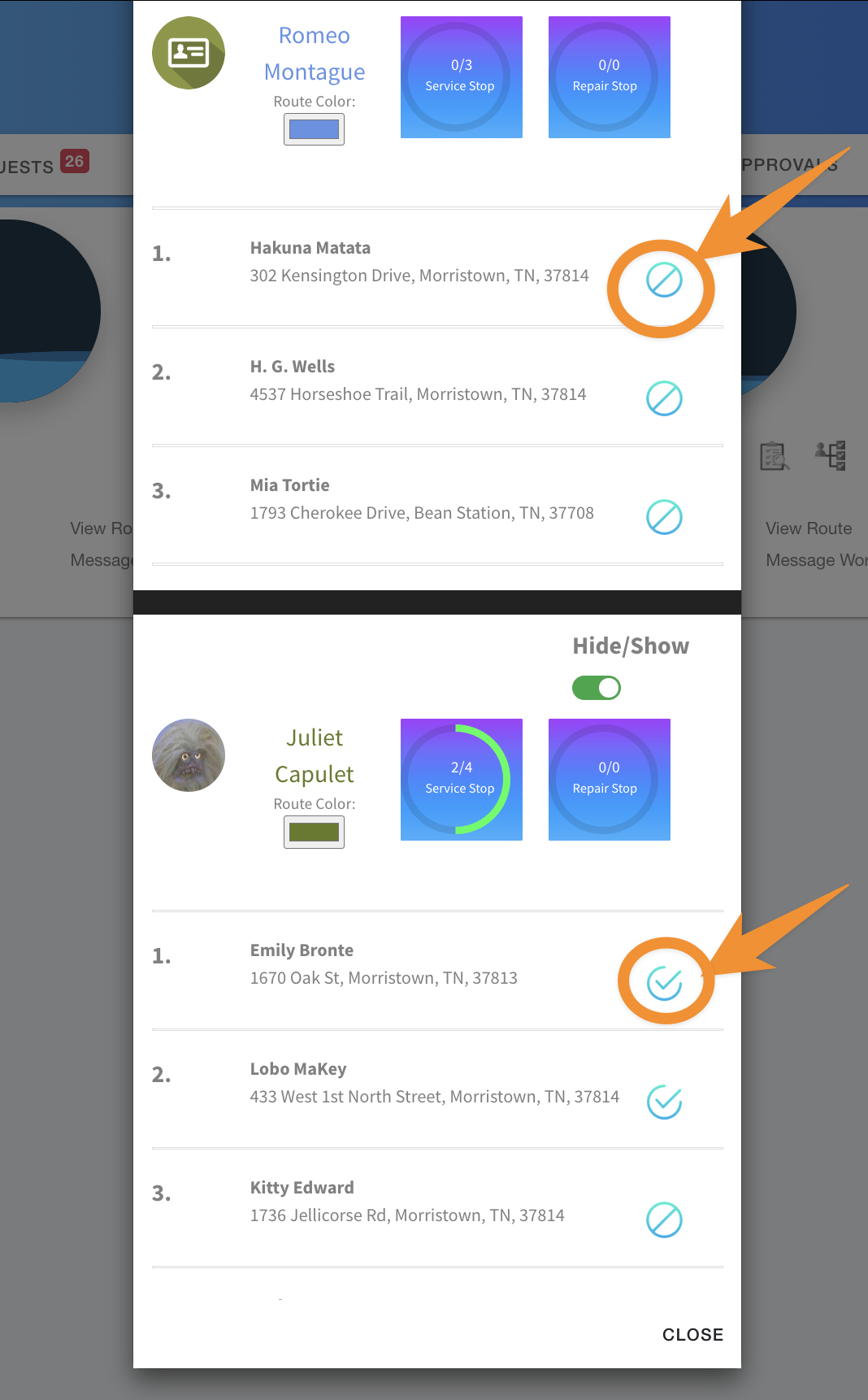
5. You can also click on the word REPAIRS from the Dashboard: 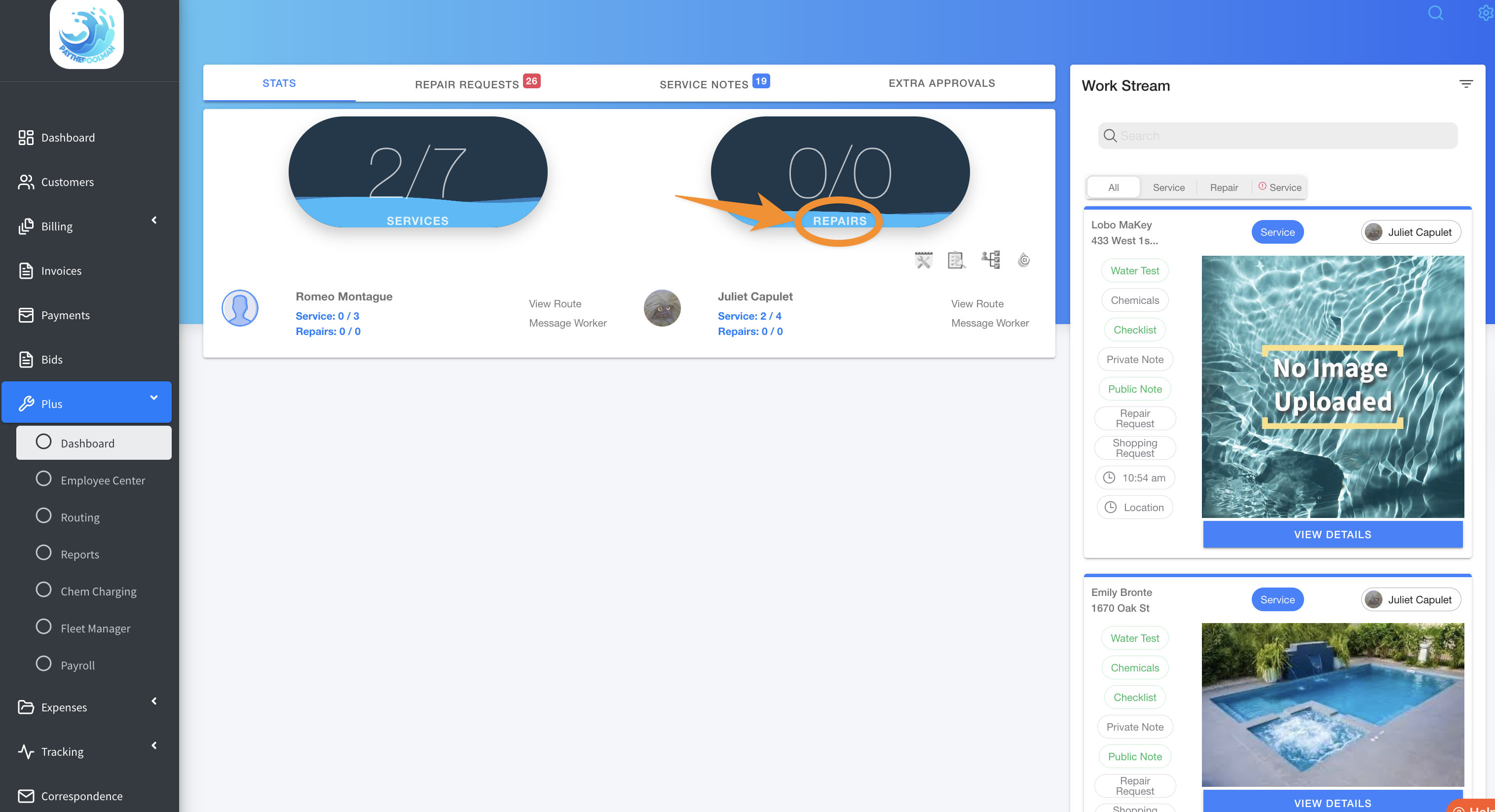
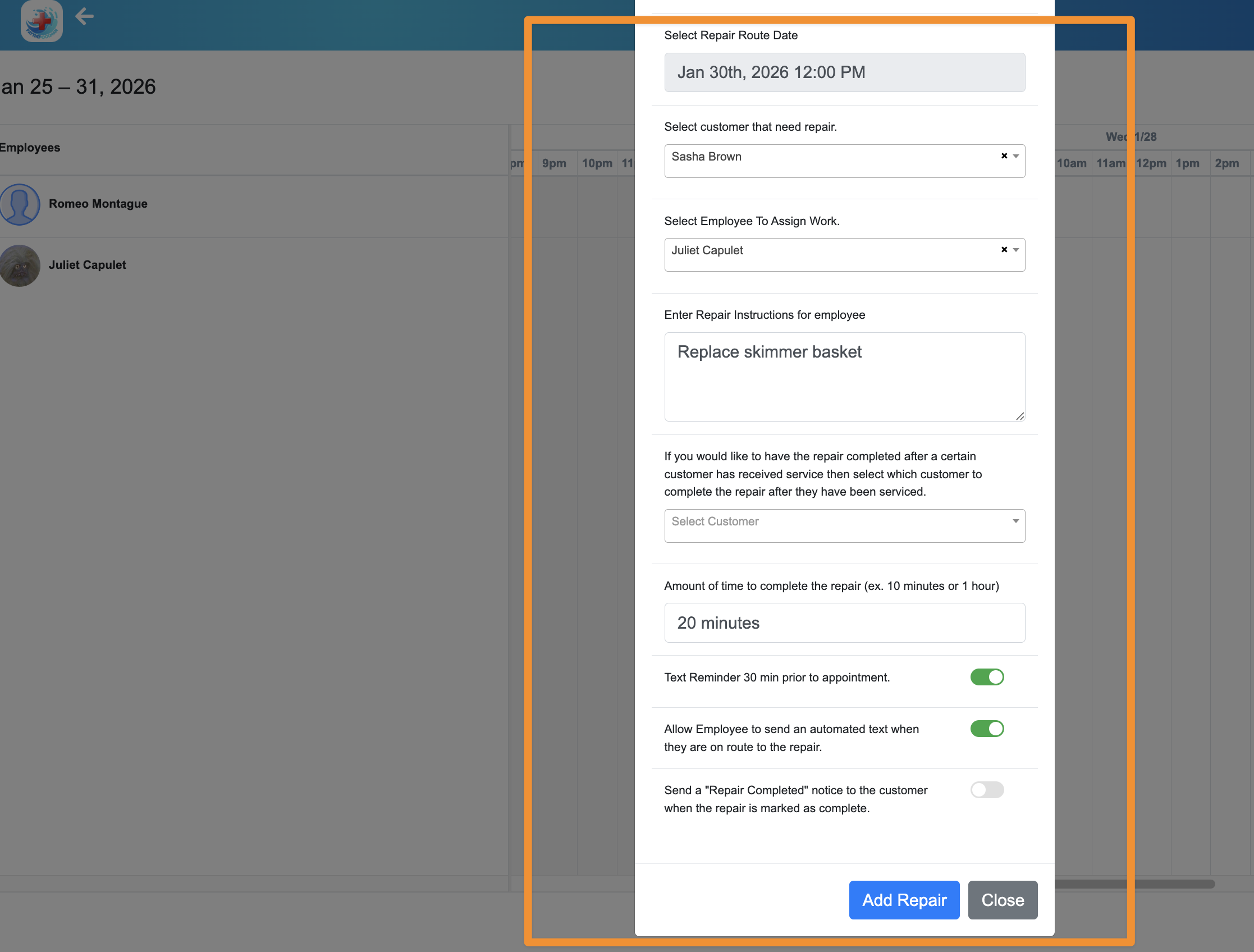
6. From here, either VIEW or ADD repairs:
7. Back at the top, you can toggle to REPAIR REQUESTS, SERVICE NOTES or EXTRA APPROVALS: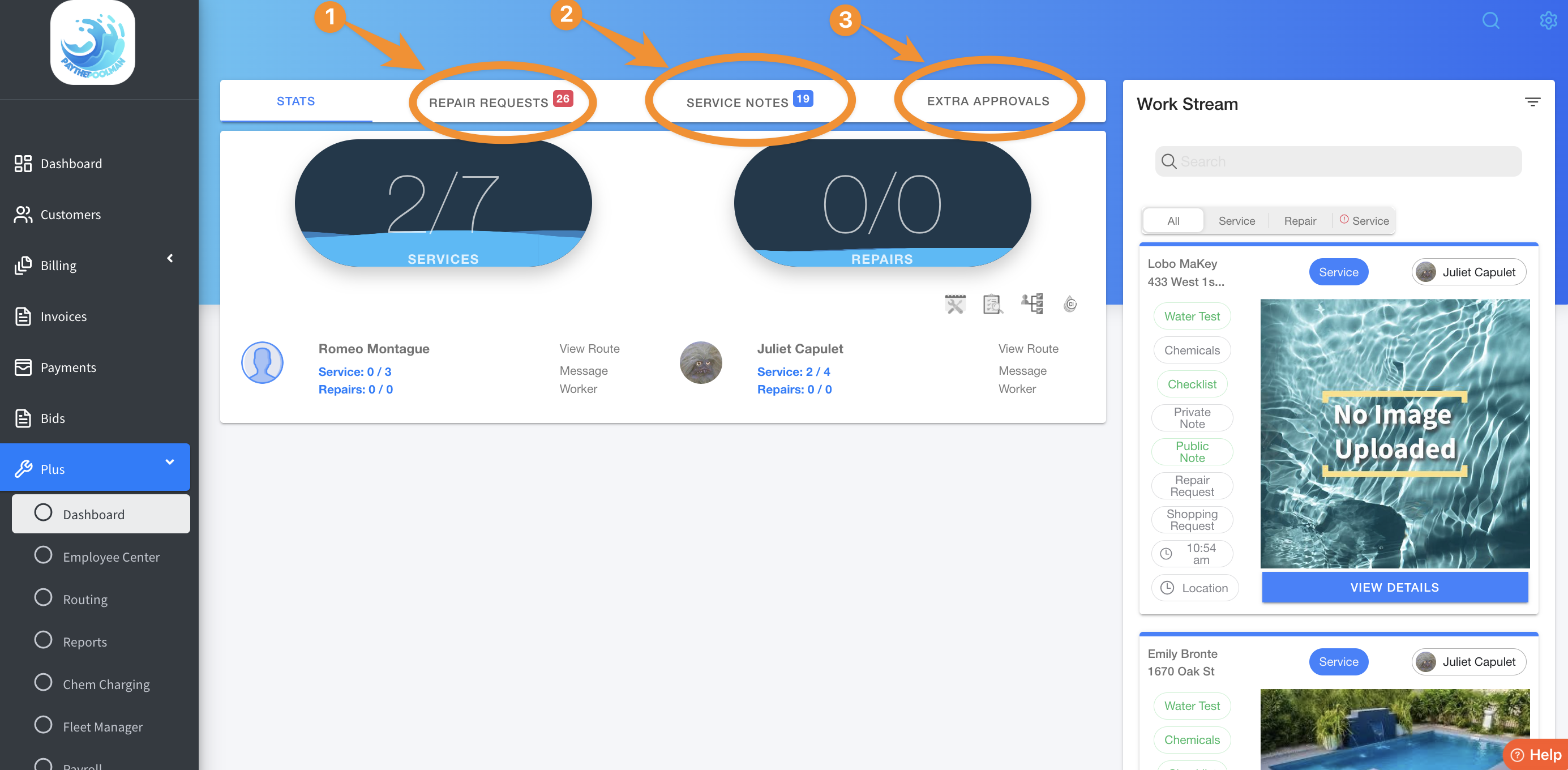
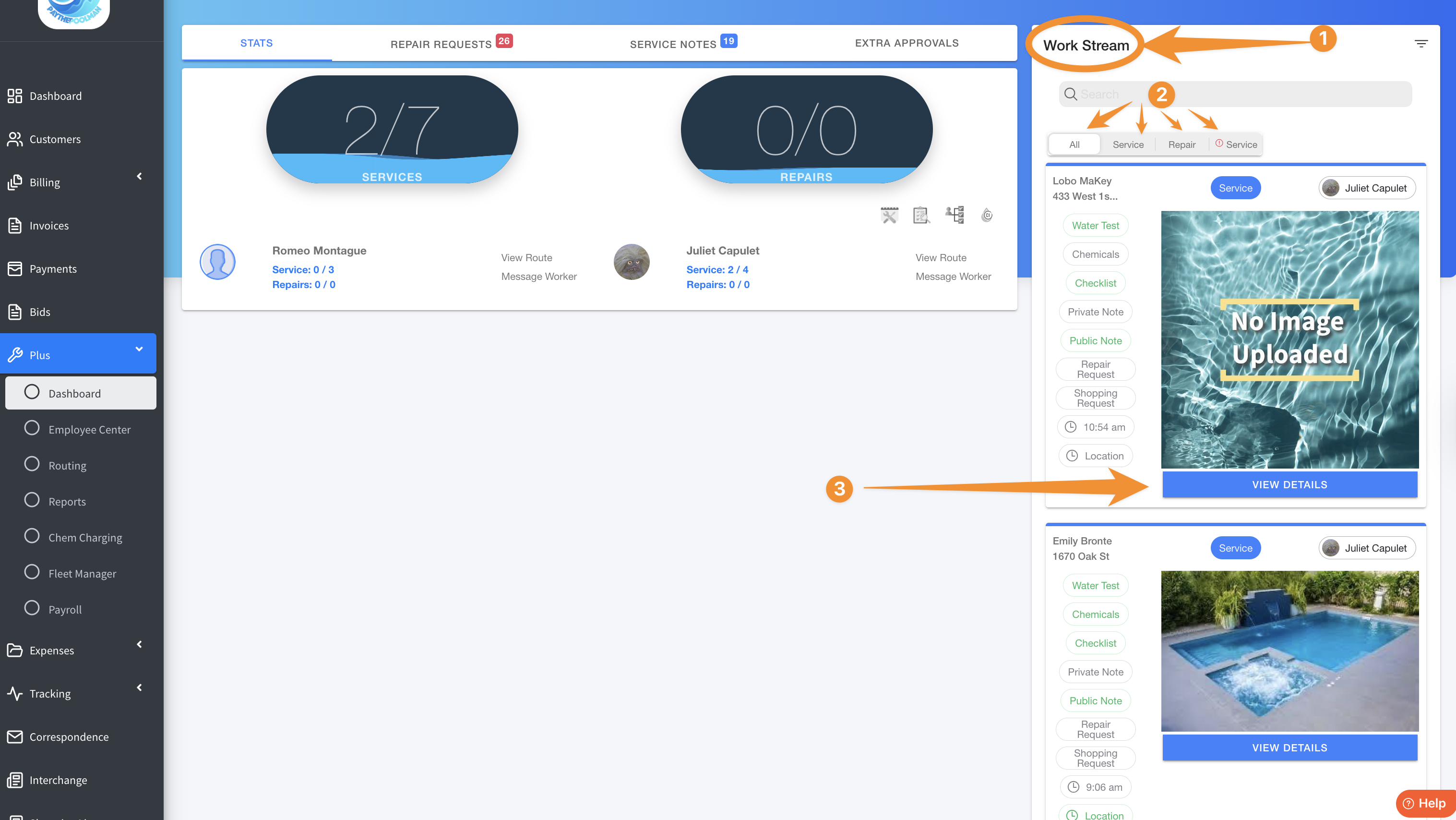
8. The WORK STREAM to the right of the screen keeps you apprised of the most current service logs. There are sorting options including ALL, SERVICE, REPAIR and/or SERVICE, and you can even click MORE DETAILS. to view the entire service log:
9. There are also four icons under REPAIRS, which will take you directly to the following: (1) REPAIR CALENDAR, (2) SERVICE INSPECTOR, (3) PROGRESS REPORTS, and the (4) CHLORINE REPORT.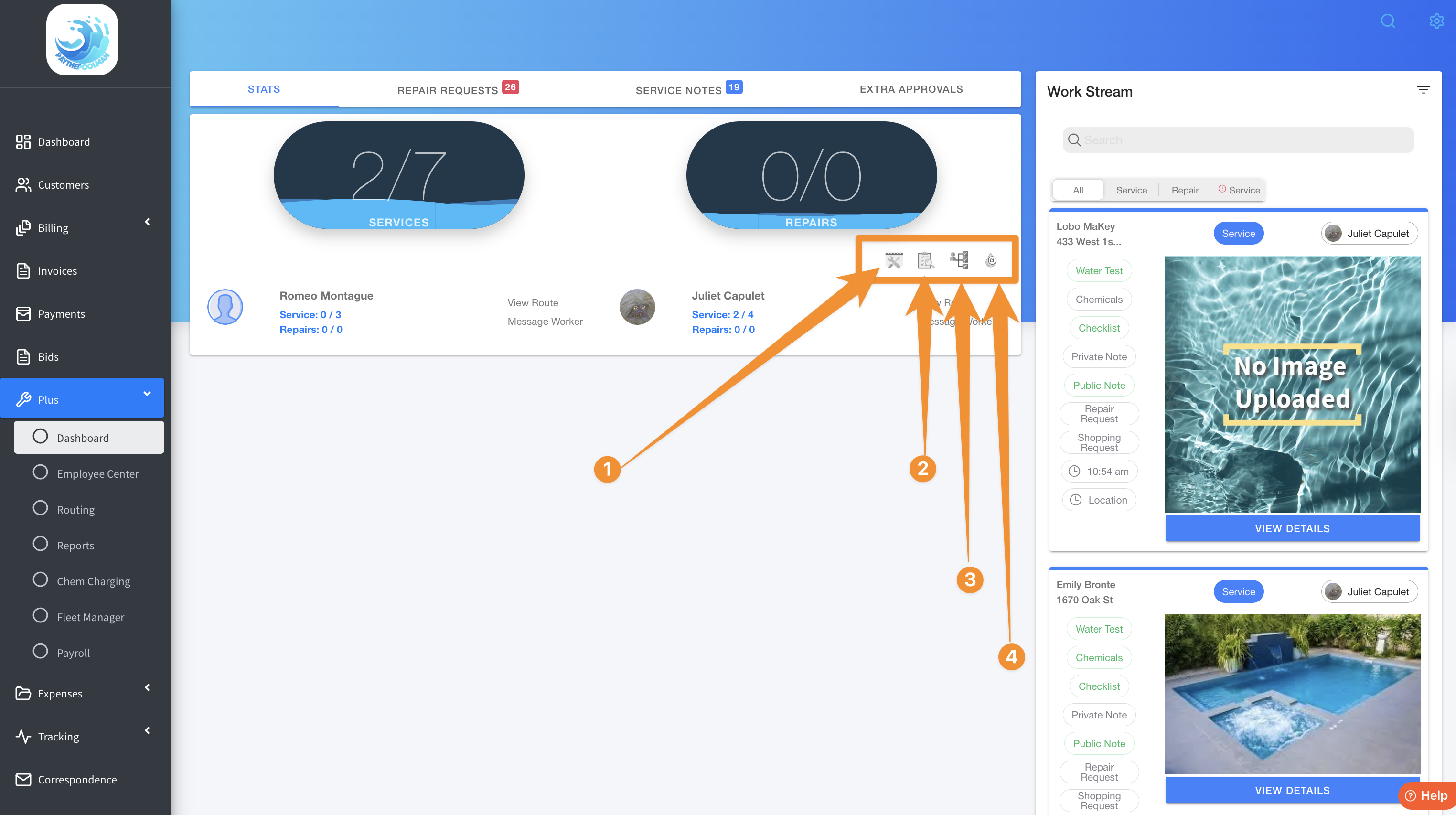
10. Finally, for each active tech, you can select to VIEW ROUTE or MESSAGE WORKER.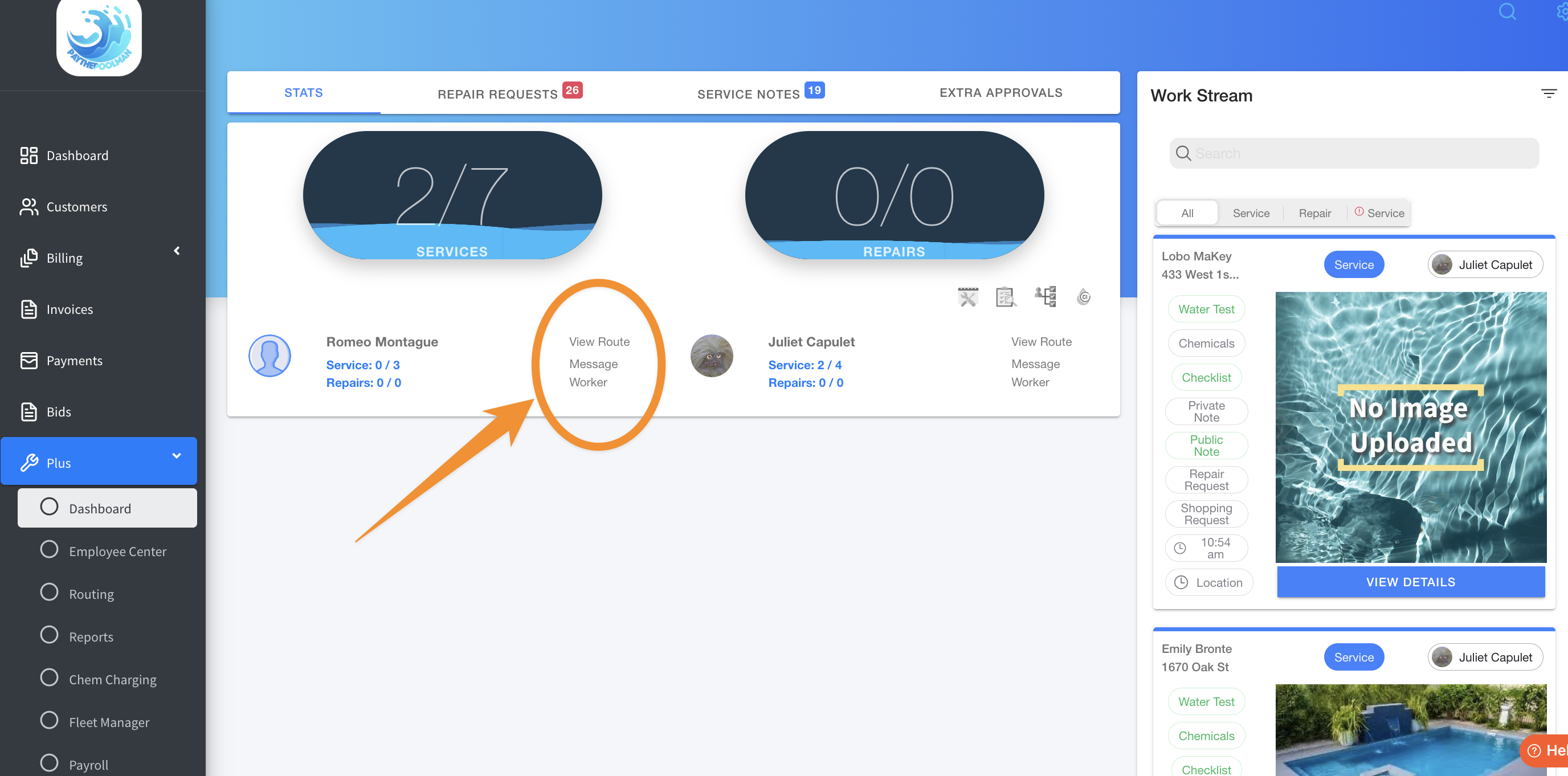
We hope this overview was helpful!
You can also ceck out this awesome video on our YouTube channel for a great overview! Navigating the Plus Dashboard
Be sure to check out our other Help Pages and our YouTube Channel with over 100 videos and tutorials!
Here's the link: https://www.youtube.com/@Paythepoolman
If you have any other questions or need further assistance, you can reach out to our Support Team at
support@paythepoolman.com or (951) 234 5166.
Office hours: Mon-Fri 8AM to 4PM EST| 5AM to 1PM PST
Have a nice day!