
Welcome to Paythepoolman Help pages!
This help page is to show you the features offered in our payment portal and what your customers will be seeing on the customer's payment portal!
1. Go to your Company Settings (gear icon in top right corner of your Paythepoolman screen), then go to PAYMENT PROCESSING, then PAYMENT PORTAL, where you can see the payment types we offer as well as the ability to add a "Quick Message" which will show up on the customer's Payment Portal with a video or image of your choice: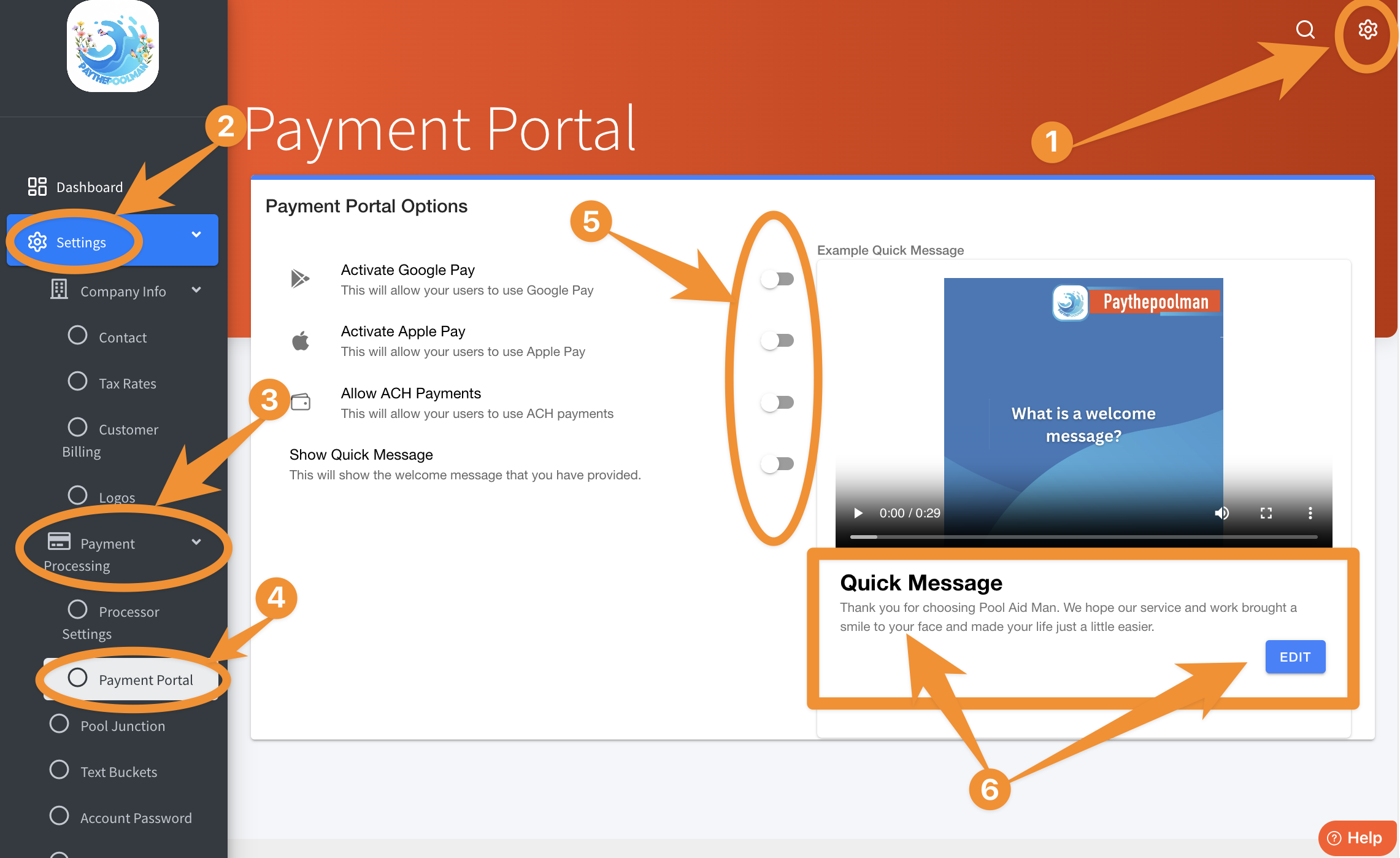
2. For customers - They will access their invoices through their email as usual. After they click on the invoice link in the email it will take them to their Payment Portal. Here's a sample email:
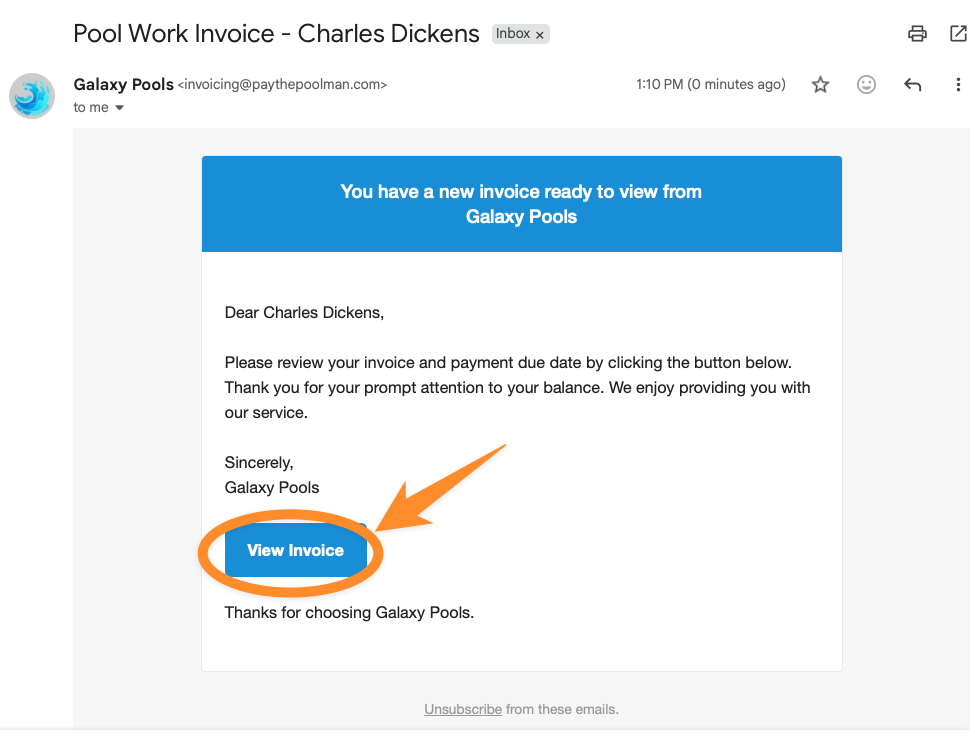
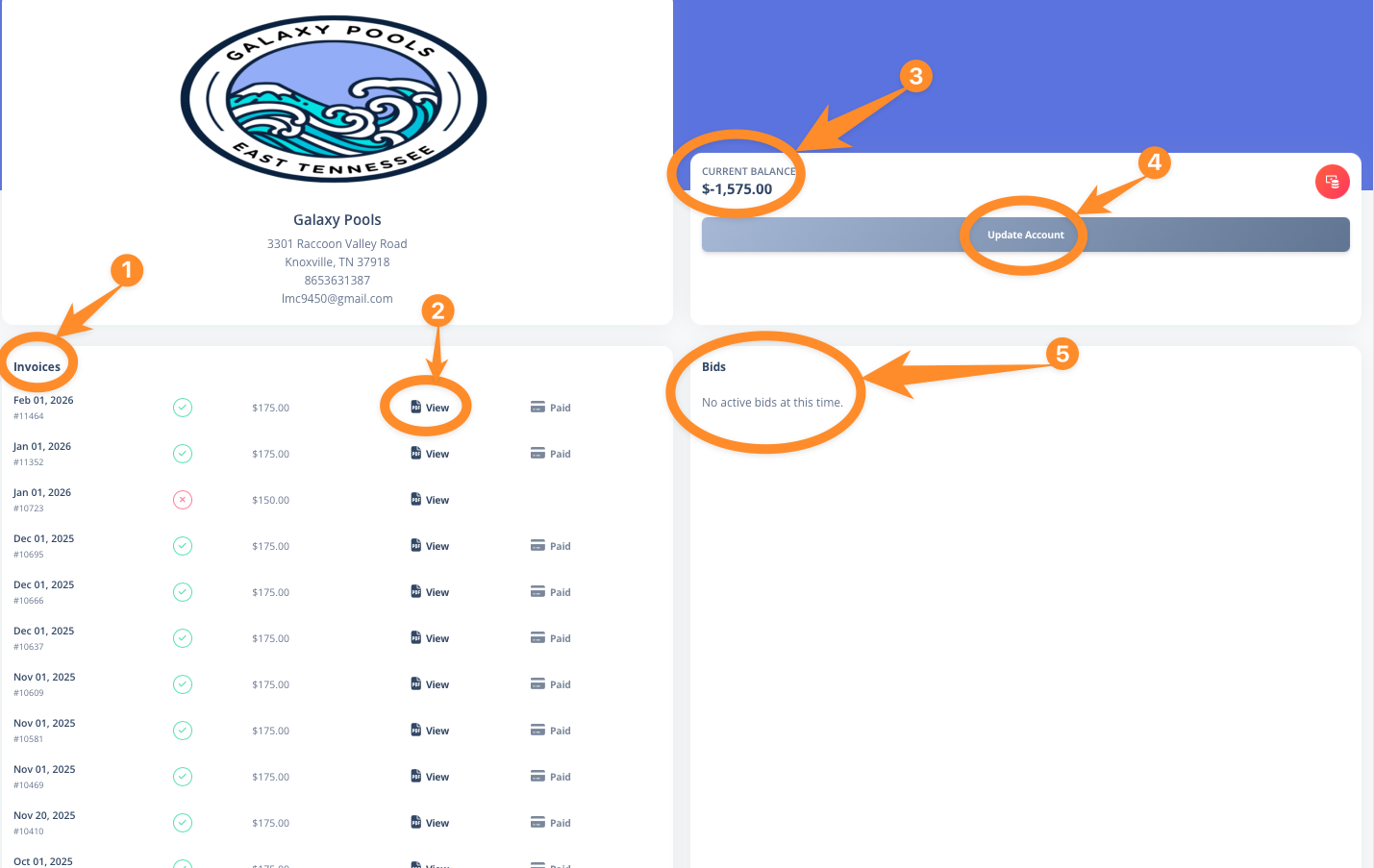
3. Then they'll click on the link to VIEW INVOICE and it will take them directly into their PAYMENT PORTAL. Here they can see their invoices, view the invoices, see their current account balance, update their contact information, see Bids (if any), and of course make online payments:
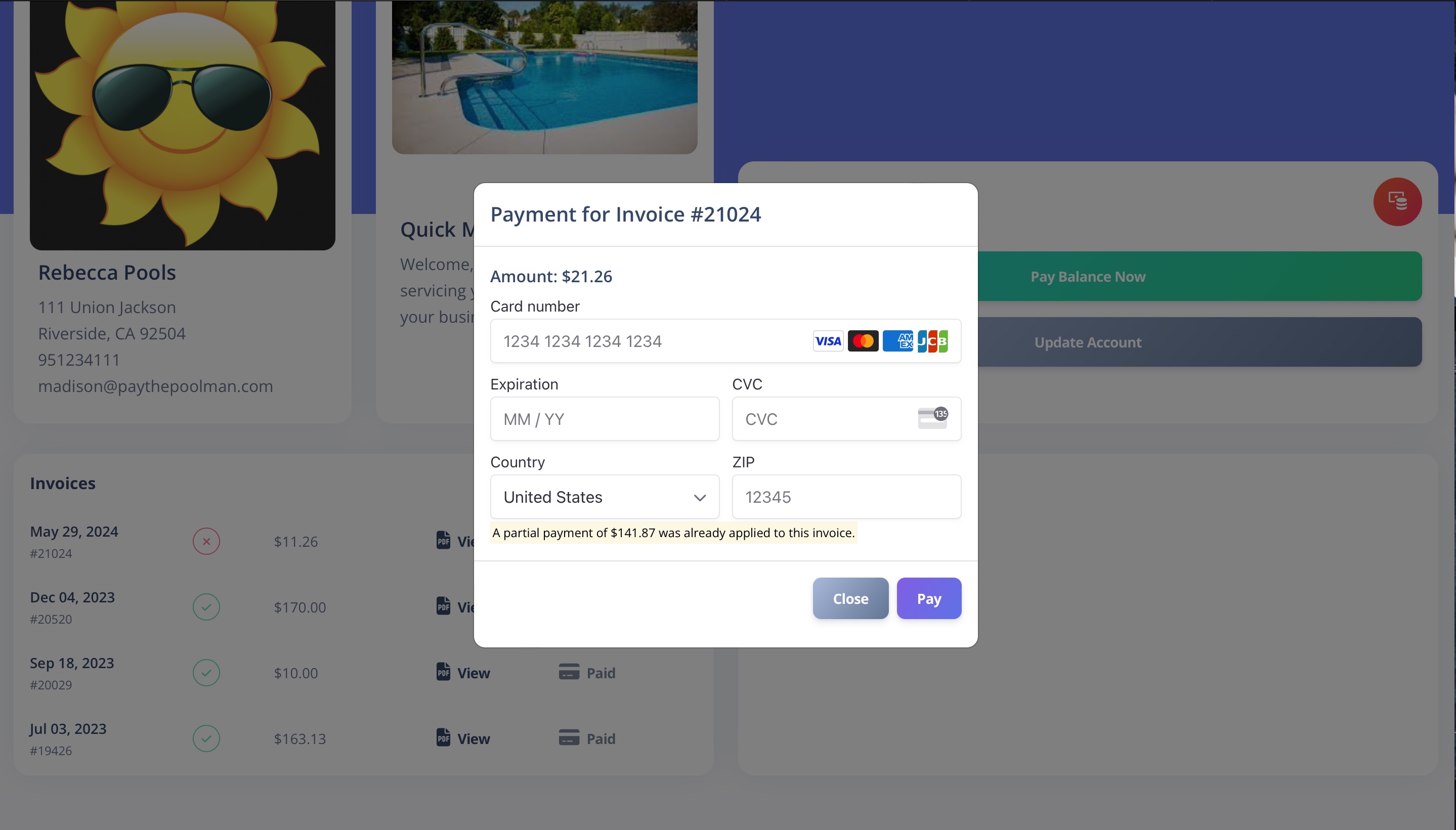
4. Sample screenshot of online payment:
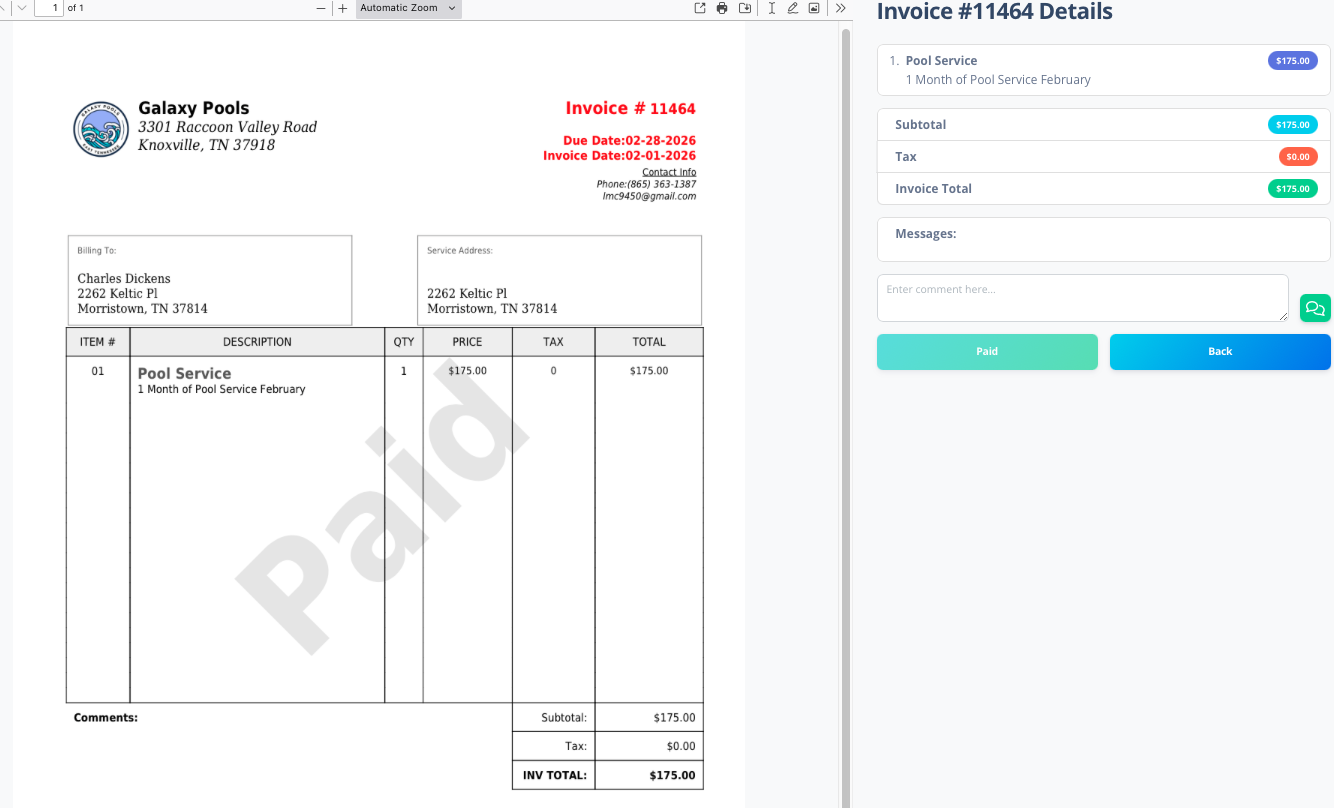
5. Invoice/Bid view:
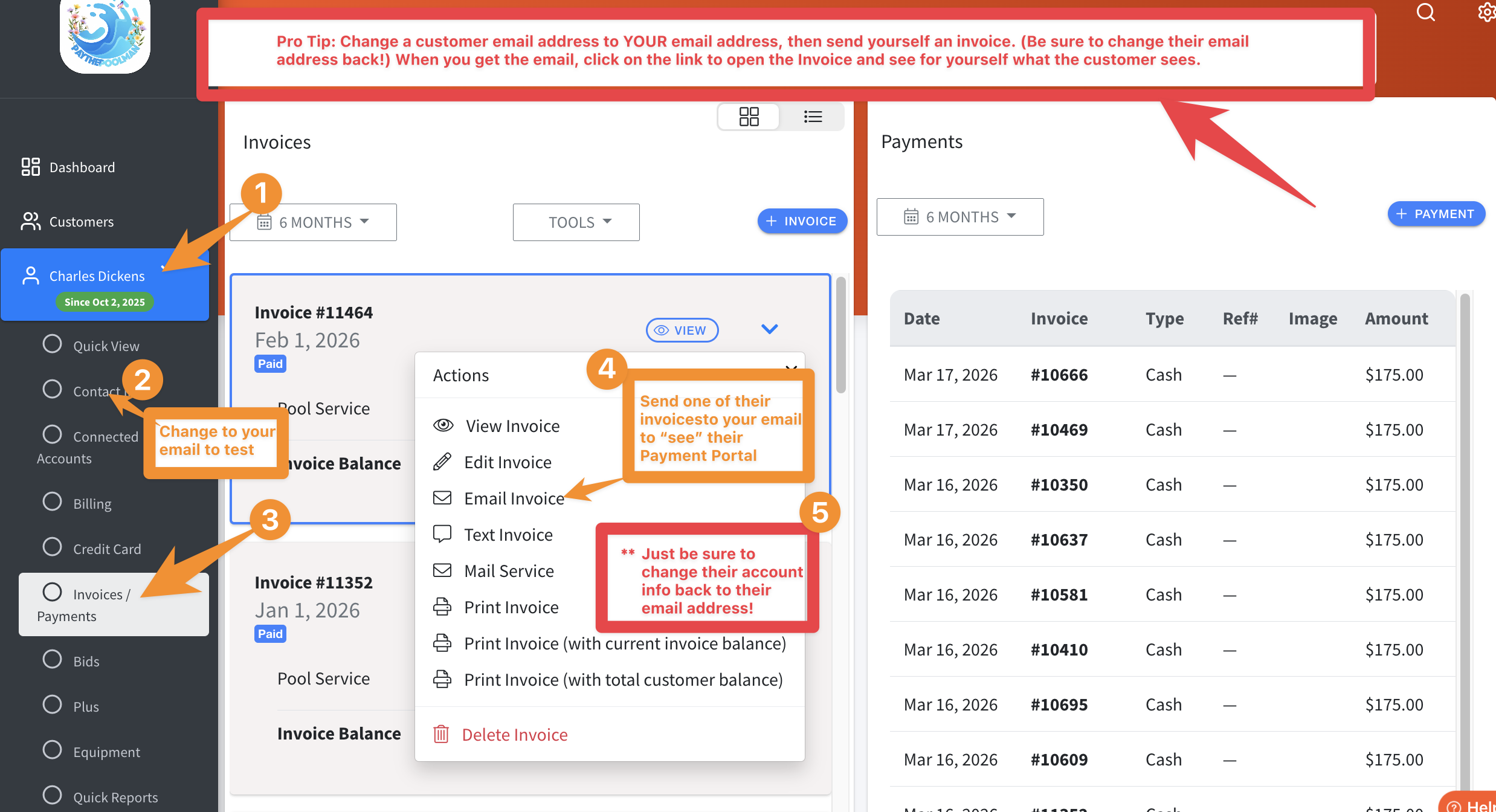
PRO TIP:
To see this for yourself, you can either set up a dummy/test account for yourself and send invoices to your email (recommended), OR, you can even change a customer email to your email address, then send an invoice to your own email. Just be sure to change back the customers' correct email address!
Be sure to check out our other Help Pages and our YouTube Channel with over 100 videos and tutorials!
Here's the link: https://www.youtube.com/@Paythepoolman
If you have any other questions or need further assistance, you can reach out to our Support Team at support@paythepoolman.com or (951) 234 5166.
Office hours: Mon-Fri 8AM to 4PM EST| 5AM to 1PM PST
Have a nice day!