
Hello and welcome to Paythepoolman Help Pages!
Do you need to add a Mass Billing Item to all your invoices? Maybe it's pool opening season and you want to add an extra fee? Here are the easy steps to make this happen!
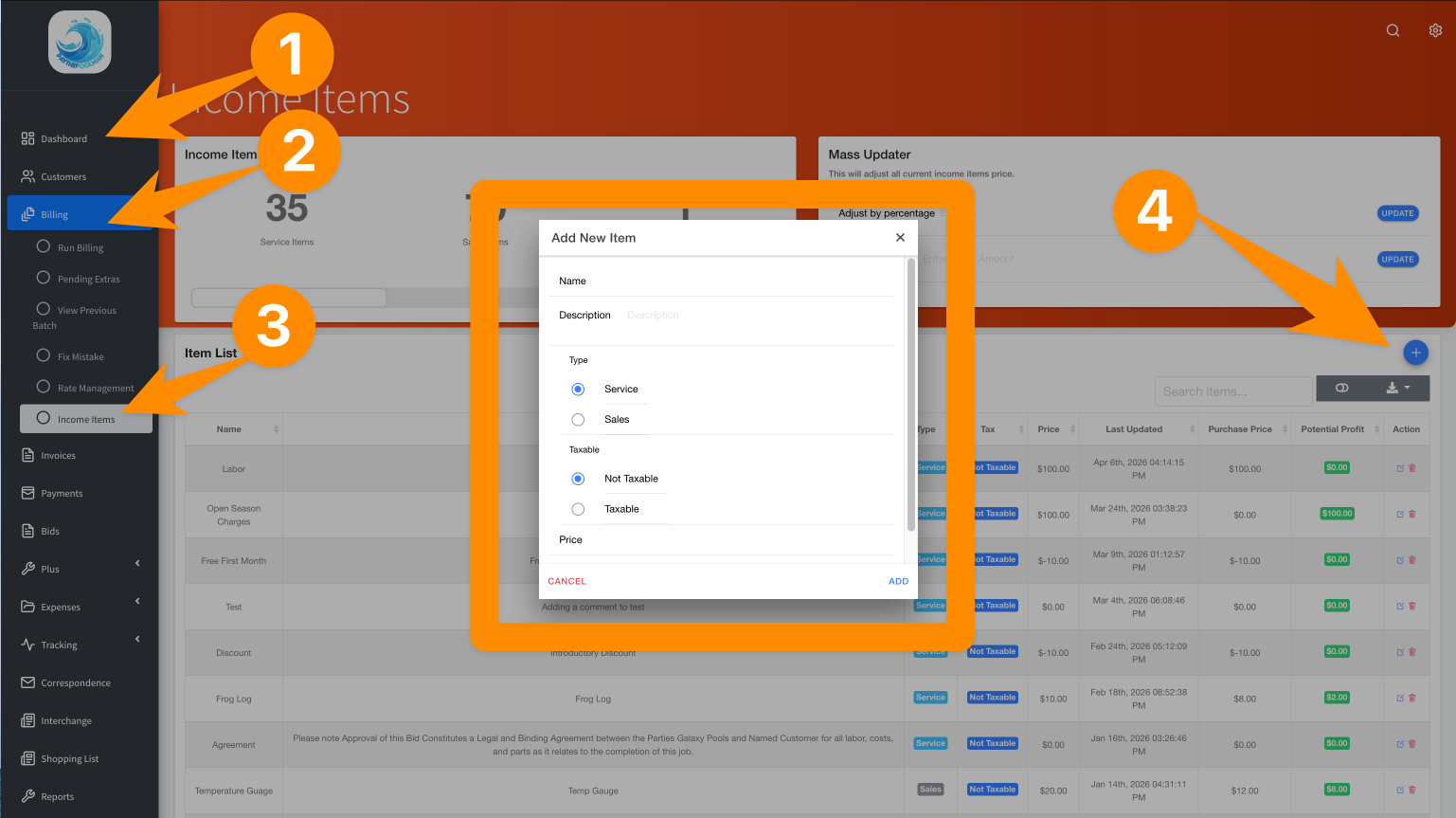
1. First, you'll need to CREATE THE ITEM IN YOUR INCOME LIST. From your Company Dashboard, go to BILLING, then INCOME ITEMS and click on the BLUE PLUS SIGN to ADD a new Income Item.
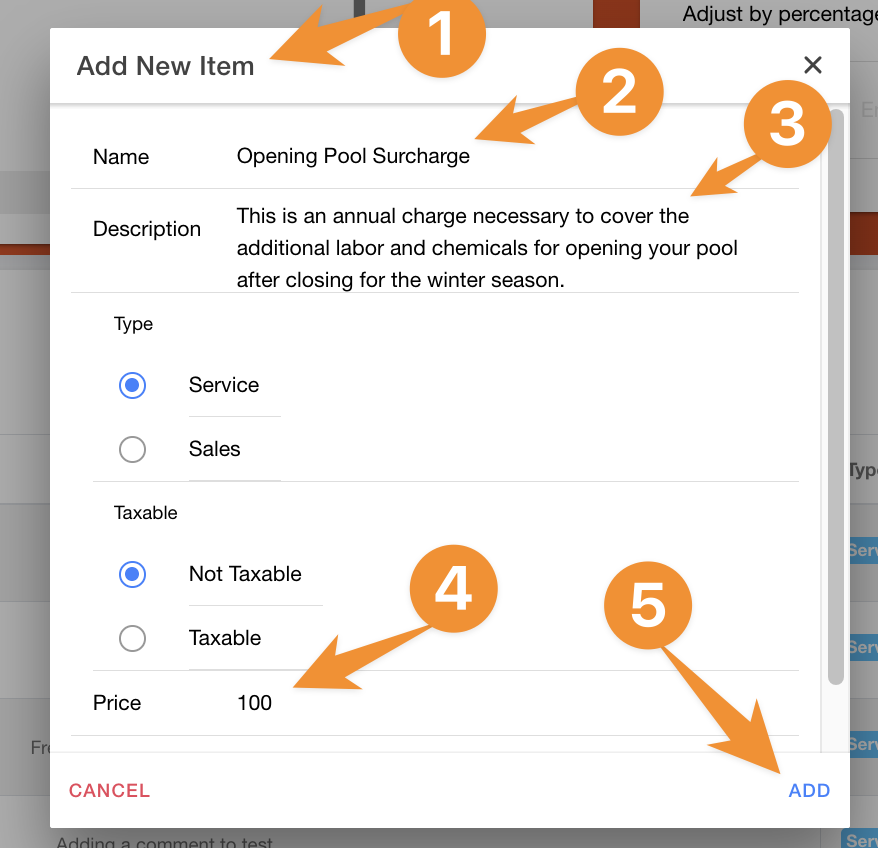
2. Complete the Income Item, description and price as you want it to appear on your invoices, then click ADD.
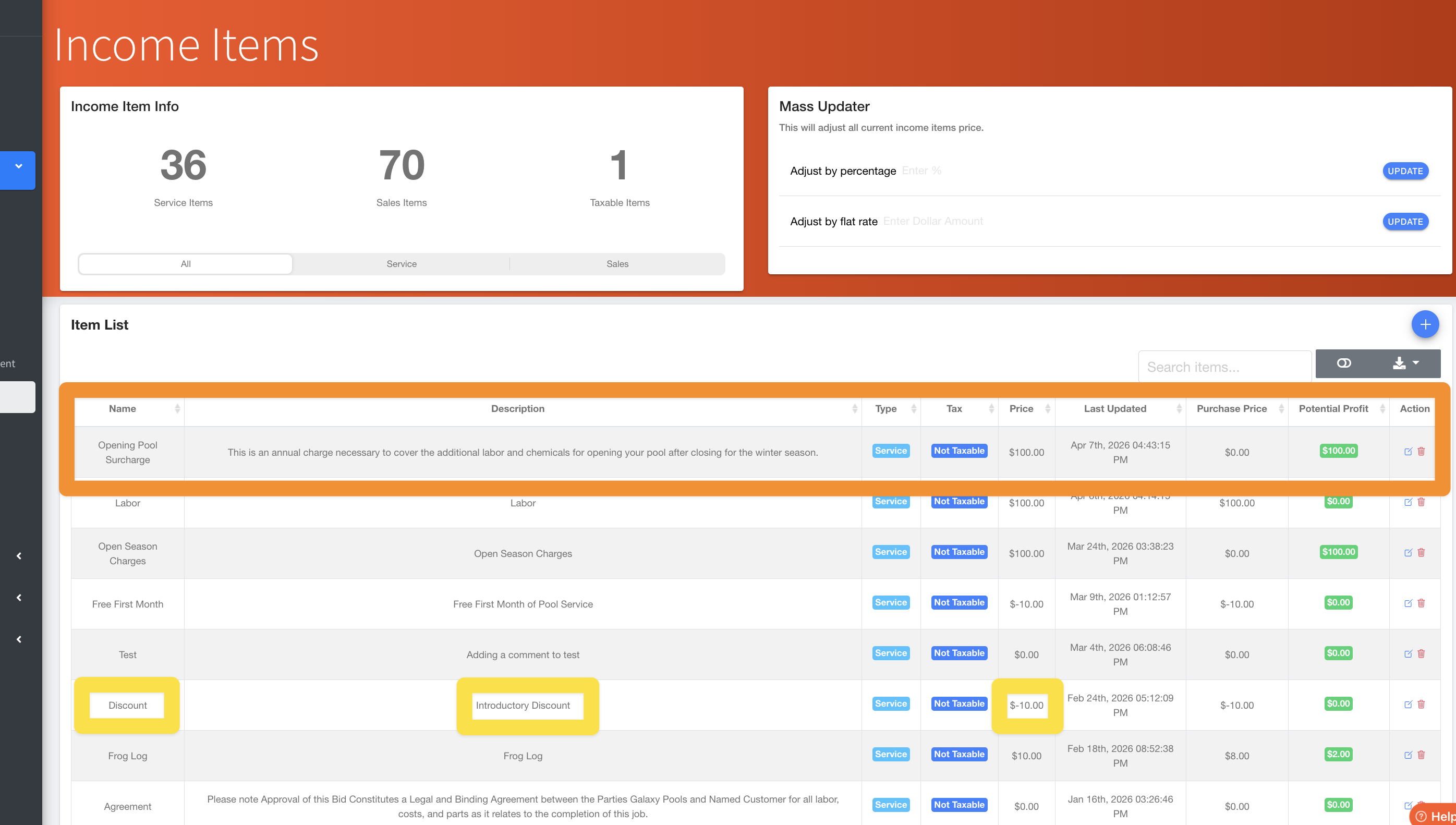
3. Now, you'll see the new Income Item in your list!
PRO TIP: THIS IS ALSO WHERE YOU CAN ADD DISCOUNTS! JUST ENTER THE INFORMATION AS A NEW INCOME ITEM AND SHOW THE DOLLAR AMOUNT AS A NEGATIVE (-) AND IT WILL AUTOMATICALLY TAKE THAT AMOUNT OFF YOUR CUSTOMER'S INVOICE! SEE THE YELLOW BOXES HIGHLIGHTED BELOW.
4. Now that you've added the item in your Income Item list, you'll be able to select it as a Mass Billing Item! Run your Billing as normal, and click on MASS BILLING ITEM to bring up the drop down menu for selection. Start typing for the Item Name in the search box, then click the blue ADD ITEM at the lower right of the pop up window.
(Here's a link to our awesome Youtube video on Run Billing if you need it: Run Billing 2.0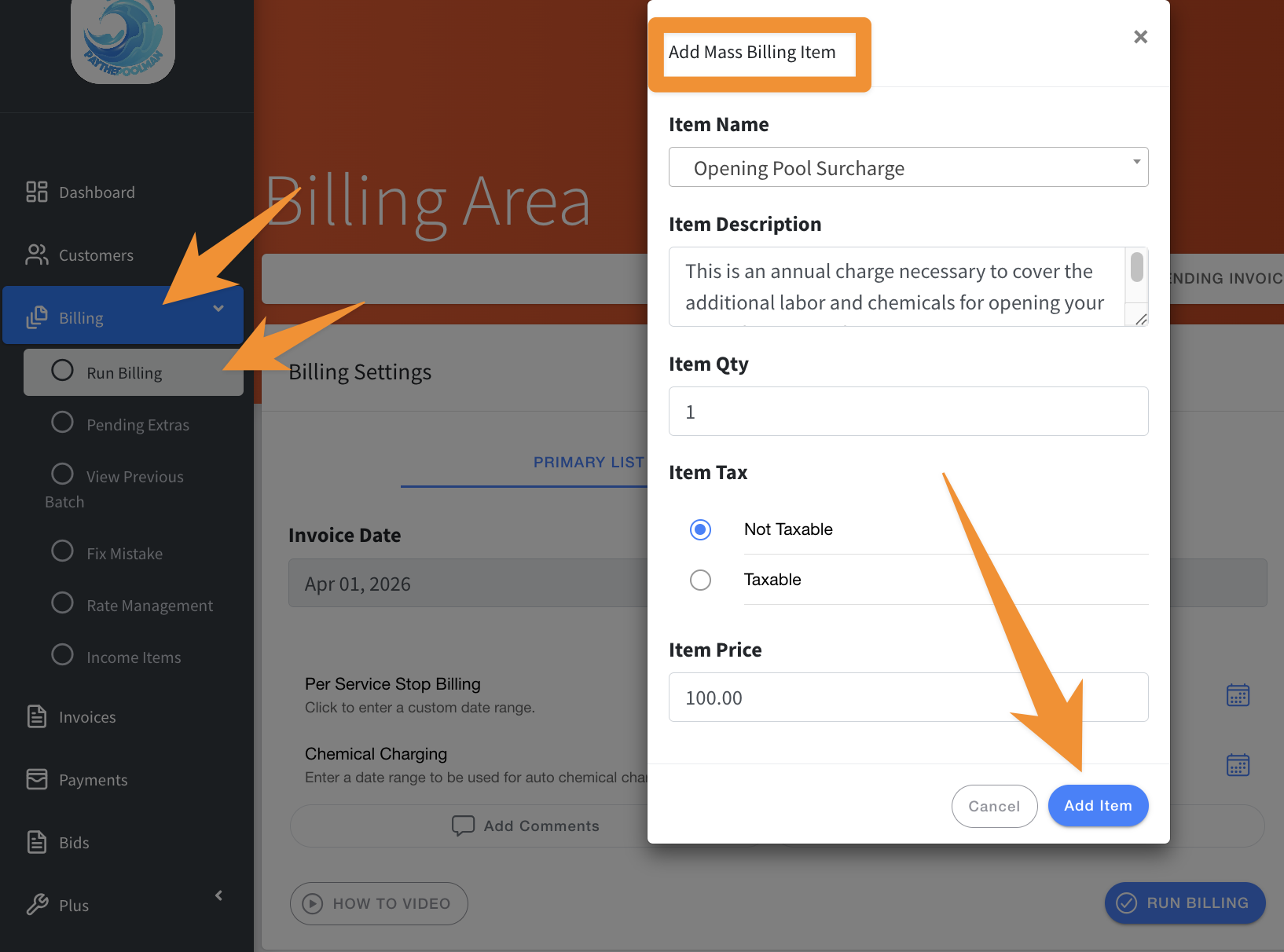
5. After you RUN BILLING, you can look at any one of the Pending Invoices to see what your customer will see. Check out this short video to see the process!
Run Billing and Add Mass Billing Item
Be sure to check out our other Help Pages and our YouTube Channel with over 100 videos and tutorials!
Here's the link: https://www.youtube.com/@Paythepoolman
If you have any other questions or need further assistance, you can reach out to our Support Team at support@paythepoolman.com or (951) 234 5166.
Office hours: Mon-Fri 8AM to 4PM EST| 5AM to 1PM PST
Have a nice day!