
Welcome to Paythepoolman Help Pages!
In this article, we will look at how the Task hub can assist your techs!
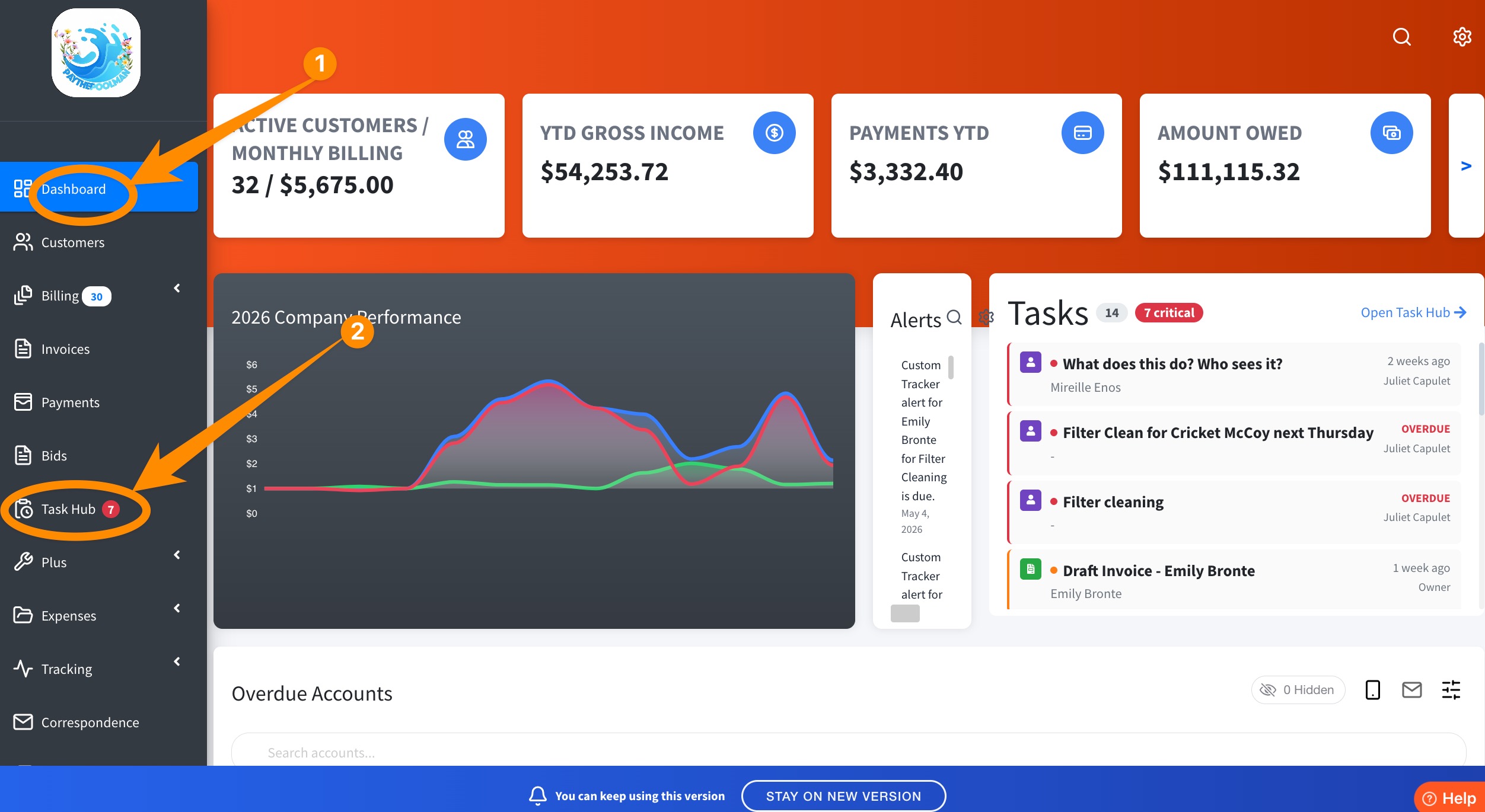
1. After your tech logs in, they'll just click on TASK HUB in the left menu bar from the Company Dashboard:
NOTE: Their dashboard won't necessarily look like the image below. What they see will depend on the permissions provided by the company owner. These settings are found under the PLUS tab > EMPLOYEE CENTER > MANAGE PERMISSIONS.
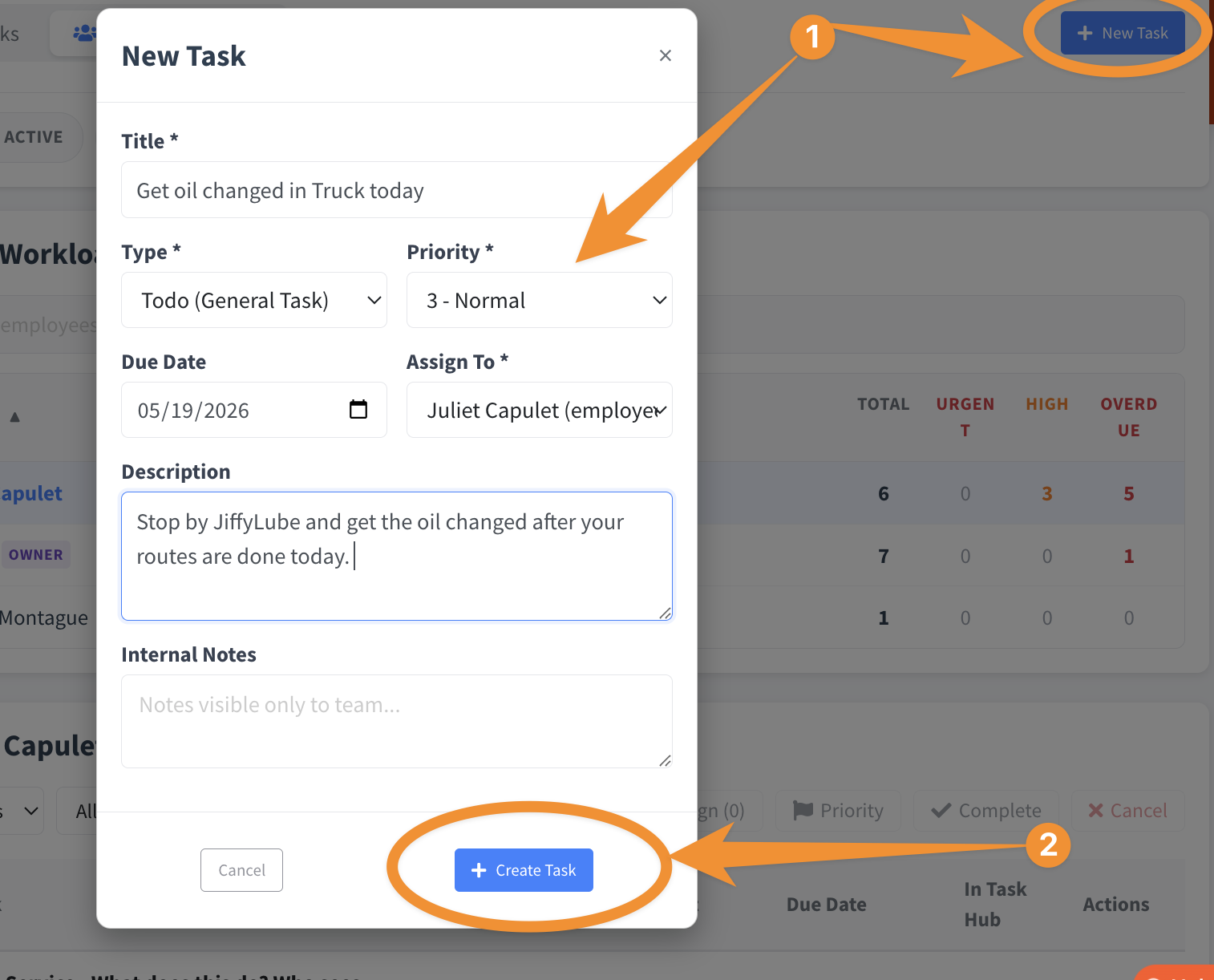
2. In the Task Hub, just click on the BLUE, + NEW TASK, and enter the pertinent information. Then, click on + CREATE TASK:
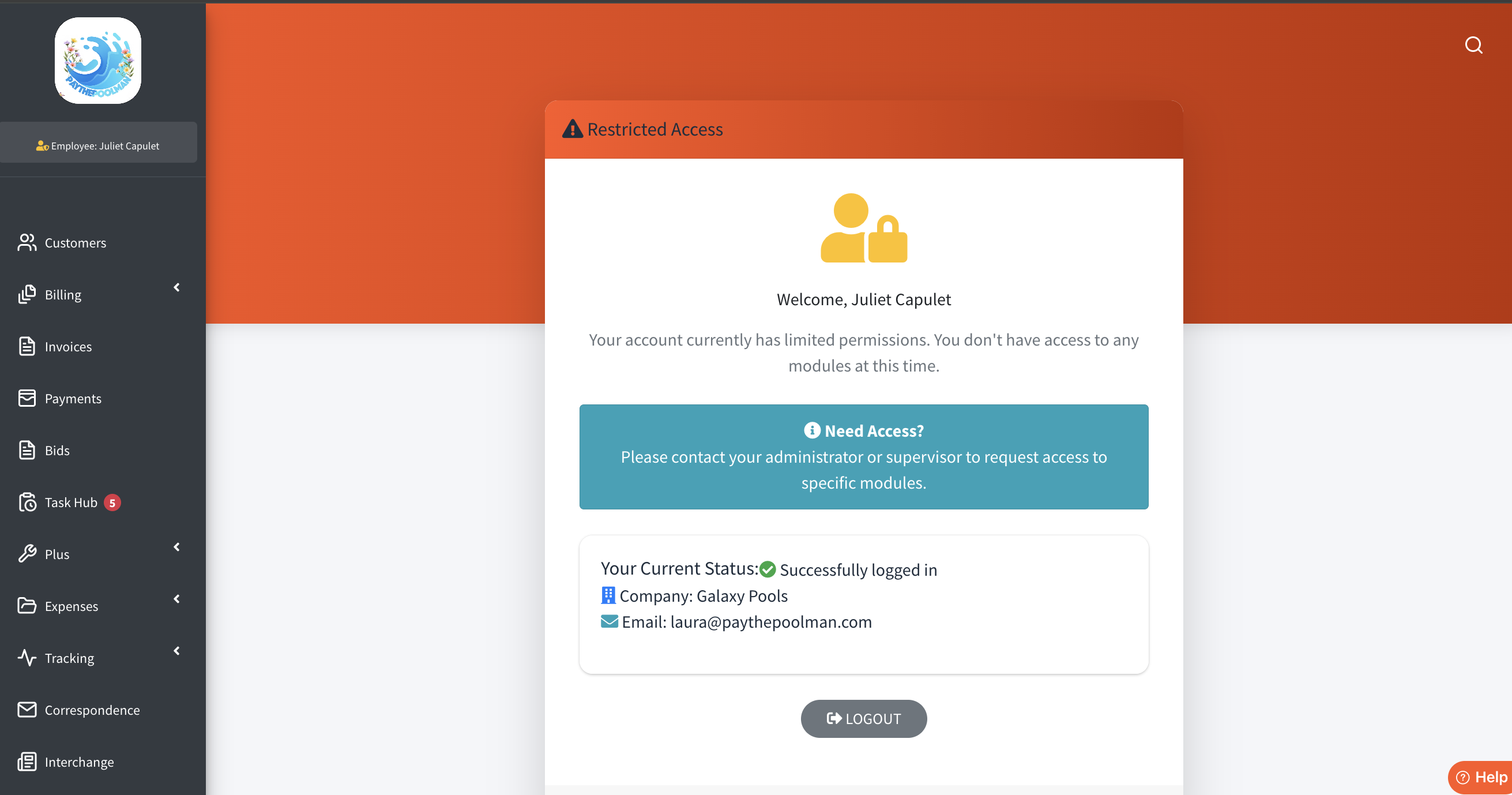
3. Your tech will then see their assigned tasks when they access Paythepoolman, and only see information based on the permissions you assign to them. Here's a sample of what your admin's dashboard might look like once you've restricted some of their access to your company's sensitive information:
4. The Task Hub will look something like this image once some "buzz" has been generated there. In this image, my employee/tech/admin sees the tasks assigned to HER in MY TASKS: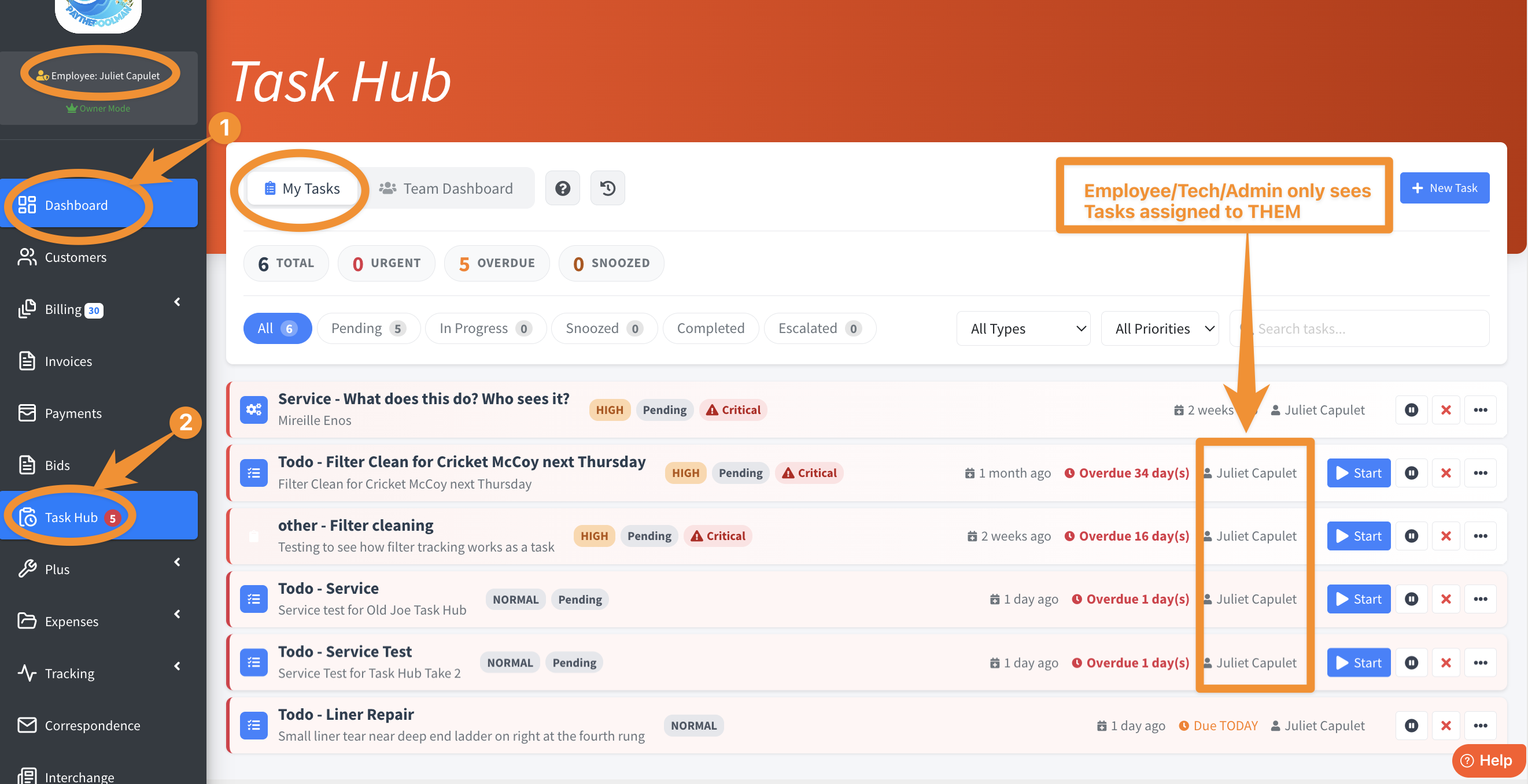
5. Your tech will also be able to click on the TEAM DASHBOARD tab and see everyone's To-Do's.
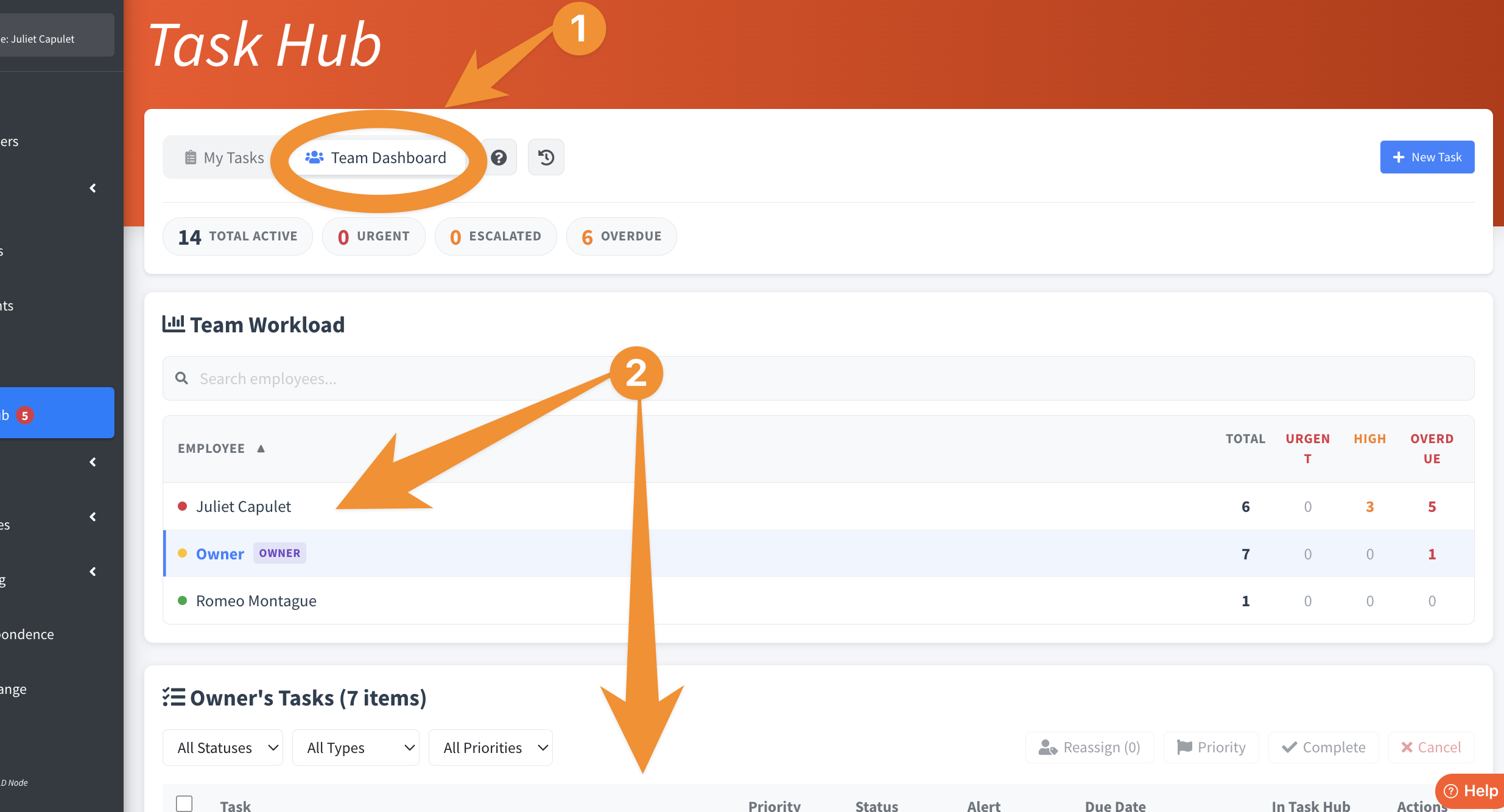
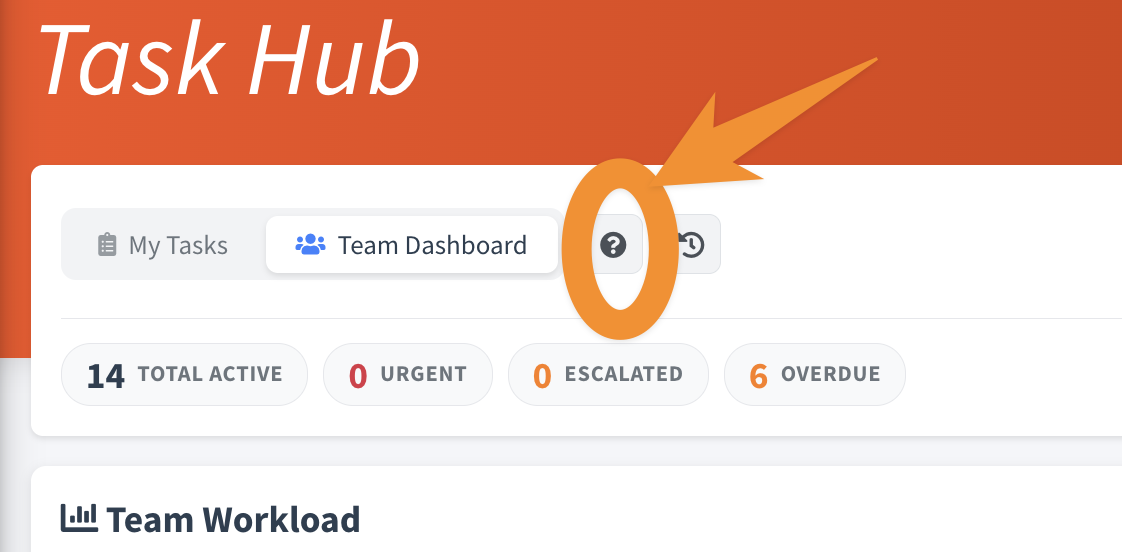
There are so many functions available in the Task Hub! From escalation to reassignment, you and your employees can find numerous ways to utilize this great feature. We encourage you to create a test customer in your account and explore the many ways it can be implemented in your day. And be sure to click on the QUESTION MARK for our awesome FAQ's. Included are real-world sample scenarios for how you and your company can apply this great tool!
Be sure to check out our other Help Pages and our YouTube Channel with over 100 videos and tutorials!
Here's the link: https://www.youtube.com/@Paythepoolman
If you have any other questions or need further assistance, you can reach out to our Support Team at support@paythepoolman.com or (951) 234 5166.
Office hours: Mon-Fri 8AM to 4PM EST| 5AM to 1PM PST
Have a nice day!